Tenants and Projects
PaletteAI uses Tenants and Projects to organize teams, control access, and manage GPU resources. This two-level hierarchy lets platform engineering teams set organization-wide policies while giving individual data science teams autonomy over their own workspaces.
For example, AI/ML platforms typically serve multiple teams with different needs. Platform teams often need to control who can access what, set resource limits, and manage infrastructure, whereas data science teams need isolated workspaces where they can deploy and manage their own workloads.
Tenants and Projects solve this by separating concerns.
- Tenants - Define organizational boundaries and platform-wide policies
- Projects - Provide isolated workspaces for teams to do their work
Tenants
A Tenant represents an organization or major division within your company. Platform engineering teams typically manage Tenants. Tenants provide the following benefits:
- Organizational grouping - Group related Projects under a single administrative unit. For example, a "Research" Tenant might contain Projects for different research teams.
- GPU quotas - Set maximum GPU usage across all Projects in the Tenant. This prevents any single team from consuming all available resources.
- Platform team access - Grant OIDC groups cluster-wide permissions to manage the Tenant and all its Projects.
- Palette integration - Reference a Settings resource that contains Palette API credentials for cluster provisioning.
Automatic Resource Creation
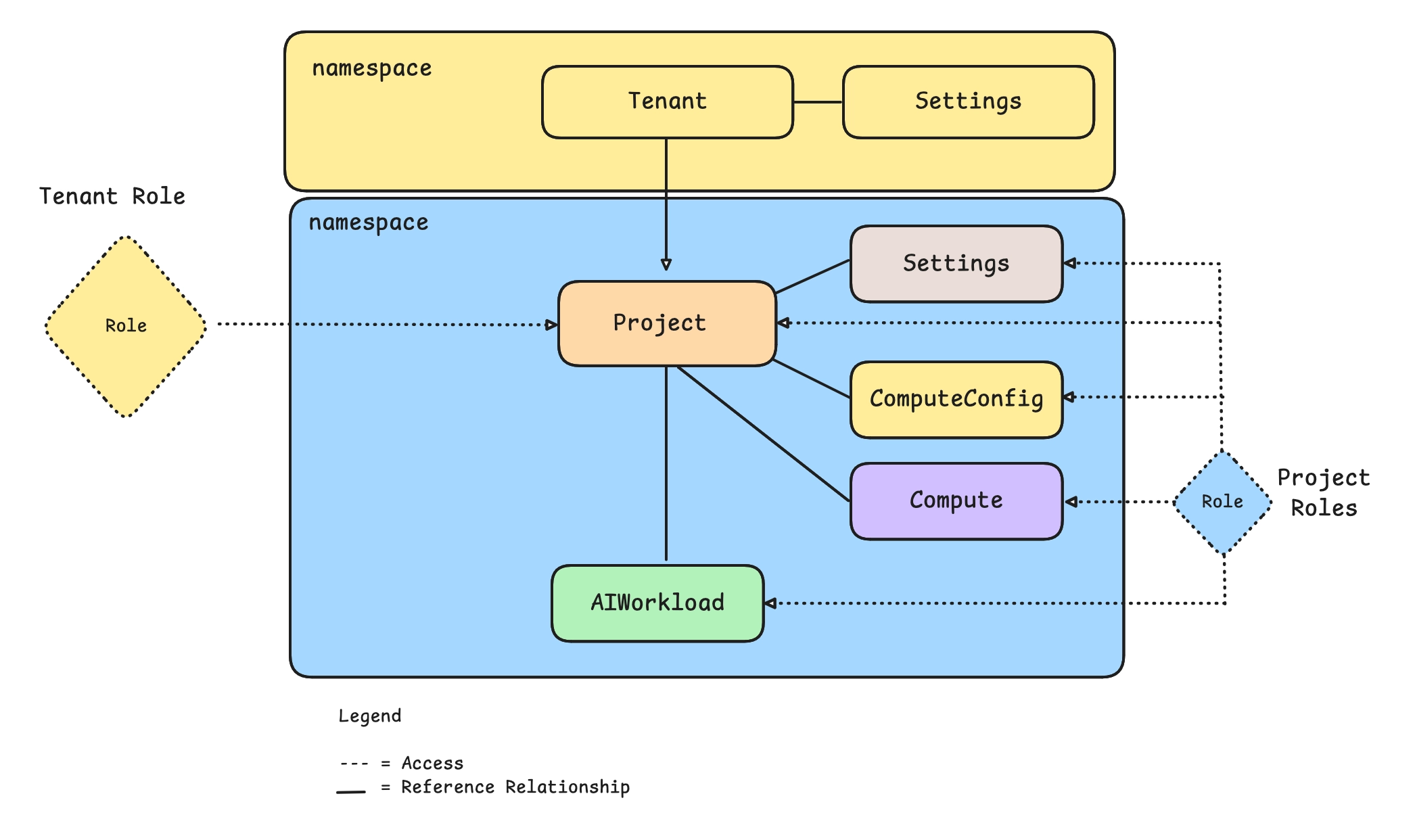
Tenants are cluster-scoped resources; they exist outside of any namespace and can span the entire cluster.
When you create a Tenant, PaletteAI automatically creates a namespace with the same name as the Tenant. When Projects are created under this Tenant, the Project controller creates a tenant admin role (tnt-adm) in each Project namespace for the OIDC groups specified in spec.tenantRoleMapping. This ensures platform teams can manage all Projects under their Tenant without manual RBAC configuration.
Default admin user
PaletteAI includes a default admin user through Dex. Static Dex users inherit admin permissions based on the PaletteAI service account role.
For production, use OIDC groups instead of static Dex users. Configure Dex in your Helm chart values.
Tenant Configuration
Tenants reference a Settings resource and define which OIDC groups have administrative access. You can create a Tenant through the UI or declaratively through a YAML manifest.
apiVersion: spectrocloud.com/v1alpha1
kind: Tenant
metadata:
  name: primary-dev
spec:
  displayName: 'Primary Dev'

  # Palette integration credentials
  settingsRef:
    name: dev-settings
    namespace: primary-dev

  # OIDC groups with tenant-level access
  tenantRoleMapping:
    groups:
      - admin
      - sre
      - operations

  # GPU quotas for all Projects in this Tenant
  gpuResources:
    limits:
      'NVIDIA-A100': 64
      'NVIDIA-H100': 48
    requests:
      'NVIDIA-A100': 8
      'NVIDIA-H100': 8
When to Create Multiple Tenants
For most deployments, a single Tenant with multiple Projects is sufficient. Projects can reference different Settings resources if they need different Palette credentials.
Consider multiple Tenants if you need any of the following:
- Separate GPU quota pools - Each Tenant has independent GPU limits. If different organizations have separate GPU allocations that should not be shared, use separate Tenants.
- Isolated administrative boundaries - Tenant admin groups (
tenantRoleMapping) receive access to all Projects within that Tenant. Separate Tenants ensure one organization's admins cannot view another organization's Projects. - Independent usage tracking - Tenant status tracks GPU usage per-Project. Separate Tenants provide separate usage reports for billing or chargeback.
If your teams can share a common GPU pool and administrative visibility is not a concern, we recommend creating a single Tenant for easier management.
Projects
A Project is a workspace where teams deploy and manage AI/ML applications. Most day-to-day work happens at the Project level. Projects provide the following benefits:
- Isolated workspace - Each Project has its own namespace. Resources in one Project do not affect other Projects.
- Team access control - Map OIDC groups to viewer, editor, or admin roles within the Project.
- Resource scoping - Compute Pools, App Deployments, and configurations are scoped to their Project.
- GPU budgets - Set GPU limits for the Project (must be within Tenant limits).
- Optional Settings override - Use different Palette credentials than the parent Tenant, if needed.
Project Roles
Projects provide three permission levels.
| Role | Capabilities |
|---|---|
| Viewer | Read-only access to all Project resources |
| Editor | Create and manage Workload Profiles and Profile Bundles |
| Admin | Full access including Project settings and permissions |
Refer to Roles and Permissions for detailed permission breakdowns.
Project Configuration
Projects reference their parent Tenant and define team access. You can create a Project through the UI or declaratively through a Kubernetes manifest. To learn how to create a Project, refer to our Create and Manage Projects guide.
apiVersion: spectrocloud.com/v1alpha1
kind: Project
metadata:
  name: project-a
  namespace: project-a
spec:
  displayName: 'Project A'

  settingsRef:
    name: dev-settings

  # Parent Tenant
  tenantRef:
    name: primary-dev

  # Default compute configuration
  computeConfigRef:
    name: edge-compute-config
    namespace: project-a

  # Team access by OIDC group
  roleMapping:
    viewer:
      - fin-ops
      - auditors
    editor:
      - ml-engineers
      - data-team
    admin:
      - admin
      - sre

  # GPU quotas for this Project
  gpuResources:
    limits:
      'NVIDIA-A100': 64
      'NVIDIA-H100': 48
      'Default': 24
    requests:
      'NVIDIA-A100': 6
      'NVIDIA-H100': 6
      'Default': 4
GPU Quotas
GPU quotas prevent resource exhaustion and ensure fair allocation across teams. Quotas are defined at both the Tenant and Project levels.
limits- The maximum overall GPU usage per GPU familyrequests- The maximum individual GPU request per App Deployment or Compute Pool per GPU family
Quotas are specified per GPU family (for example, NVIDIA-A100, NVIDIA-H100, etc.).
gpuResources:
  limits:
    'NVIDIA-A100': 32 # Team can use up to 32 A100s total
  requests:
    'NVIDIA-A100': 8 # Single workload can request up to 8 A100s
Quota Inheritance
Project limits must be less than or equal to Tenant limits for the same GPU family. If a Project does not specify limits for a GPU family, it inherits from the Tenant. If neither specifies a limit, PaletteAI does not restrict GPU usage for that family.
Default Quotas
Use the Default key to set quotas for GPU families not explicitly listed.
gpuResources:
  limits:
    'NVIDIA-A100': 32
    'Default': 16 # Any other GPU family limited to 16 total
  requests:
    'NVIDIA-A100': 8
    'Default': 4 # Any other GPU family limited to 4 per request
Tracking and Oversubscription
PaletteAI automatically tracks GPU usage in real-time under status.gpuUsage in the respective Tenant and Project CRDs.
status:
  gpuUsage:
    project-a:
      'NVIDIA-A100': 12
      'NVIDIA-H100': 8
    project-b:
      'NVIDIA-A100': 4
      'NVIDIA-H100': 4
status:
  gpuUsage:
    'NVIDIA-A100': 12
    'NVIDIA-H100': 8
Use the following commands to check GPU usage at the Tenant and Project levels.
kubectl get tenant <tenant-name> --output jsonpath='{.status.gpuUsage}'
kubectl get project <project-name> --namespace <project-namespace> --output jsonpath='{.status.gpuUsage}'
If concurrent requests cause usage to exceed limits, the following occurs:
- The resource's
Oversubscribedcondition becomestrueon the Tenant or Project - New GPU requests are blocked until usage drops below limits. App Deployments and Compute Pools requesting GPUs remain in a pending state.
- Once existing workloads are deleted and usage drops below limits, the condition clears and new requests can proceed.
Use the following commands to check the Oversubscribed status at the Tenant and Project levels.
kubectl get tenant <tenant-name> --output jsonpath='{.status.conditions[?(@.type=="TenantOversubscribed")]}'
kubectl get project <project-name> --namespace <project-namespace> --output jsonpath='{.status.conditions[?(@.type=="Oversubscribed")]}'
Default Resources
PaletteAI creates a default Tenant and Project during installation. These provide a starting point for exploration but should be customized for production use.
To disable default resource creation, set global.featureFlags.systemDefaultResources to false in your Helm chart values:
global:
  featureFlags:
    systemDefaultResources: false