Expose Deployments
You can use predefined objectOutputRefs to expose an App Deployment's or model deployment's service, ingress, or gateway (HTTP route). Adding predefined objectOutputRefs to your application's workload profile allows you to access your application by selecting a button instead of visiting a URL or IP address.
Prerequisites
-
Permission to create or edit WorkloadProfile resources.
-
Knowledge of the name and namespace of the application's or model's service, ingress, or gateway (HTTP route)
-
(Applications or models with an ingress) The application's or model's SSL certificate; otherwise, HTTPS will be unavailable.
Enablement
-
Log in to PaletteAI.
-
From the left main menu, select Workload Profile.
-
Create a new workload profile or modify an existing profile.
- New workload profile - Select New profile.
- Modify existing workload profile - Select the three-dot menu beside the profile and choose View Details > Create Version.
-
Complete the appropriate workload profile fields. A workload profile name, type (application, model, or infrastructure), and update type (patch, minor, or major) are required. The name and type cannot be modified if creating a new profile version. Select Next when finished.
-
Select an existing component from the stack or select Add component. If adding a new component, complete the applicable component fields. Fields vary based on the component type.
-
In the top-right of the profile pane, select Add Object Output.
-
In the Add Object Output drawer, choose Namespace for the resource scope, and enter the following values based on whether you are exposing the application's or model's service, ingress, or gateway. You must create a separate object output for each Output name in the table below.
Refer to our Outputs reference guide for additional details.
warning- Service
- Ingress
- Gateway
Output Name API Version Kind Path webserverIpv1Service.status.loadBalancer.ingress[0].ipwebserverPortv1Service.spec.ports[0].portinfoDefining an
httpSchemeis optional. If undefined,http://is used by default.To determine whether to expose the URL with an HTTP or HTTPS prefix, the ingress's
spec.tls.[0].hosts[0]is inspected. If an entry is found in the list, PaletteAI prependshttps://to the URL when a user selects the Access button. Otherwise,http://is prefixed.Output Name API Version Kind Path ingressDomainnetworking.k8s.io/v1Ingress.spec.rules[0].hostingressPathnetworking.k8s.io/v1Ingress.spec.rules[0].http.paths[0].pathhttpSchemenetworking.k8s.io/v1Ingress.spec.tls[0].hosts[0]infoDefining an
httpSchemeis optional. If undefined,http://is used by default.To determine whether to expose the URL with an HTTP or HTTPS prefix, the gateway's
spec.listeners[0].protocolis inspected. If an entry is found in the list, PaletteAI prependshttps://to the URL when a user selects the Access button. Otherwise,http://is prefixed.Note that depending on your environment setup, the correct index may not be
0. Review your listeners and select the appropriate listener for your gateway.Output Name API Version Kind Path gatewayDomaingateway.networking.k8s.io/v1HTTPRoute.spec.hostnames[0]gatewayPathgateway.networking.k8s.io/v1HTTPRoute.spec.rules[0].matches[0].path.valuehttpSchemegateway.networking.k8s.io/v1Gateway.spec.listeners[0].protocol -
(Optional) Configure the following options, if desired:
- Skip hash - Prevent the workload from being redeployed when only the output value changes. Useful for outputs that change frequently but do not require the app to be redeployed.
- Deployment priority - Specify when this output should be resolved. If provided, the output is resolved at the specified deployment priority; otherwise, the output is resolved after the final deployment priority. Refer to our Definitions guide for more information on deployment priorities.
-
Select Add to complete your object output setup. Repeat steps 7 - 8 until all required outputs are added for your application or model.
-
Close the Object Outputs drawer. Select Next.
-
Review your workload profile configuration and select Save Profile.
Validate
-
Log in to PaletteAI.
-
From the left main menu, select Workload Profile.
-
Select the three-dot menu beside the applicable workload profile and choose View Details.
-
In the bottom-left of the profile editor, select the
</>button to open the YAML editor. If you have multiple workload profile versions, use the version drop-down menu to ensure you are on the version containing the predefined object outputs.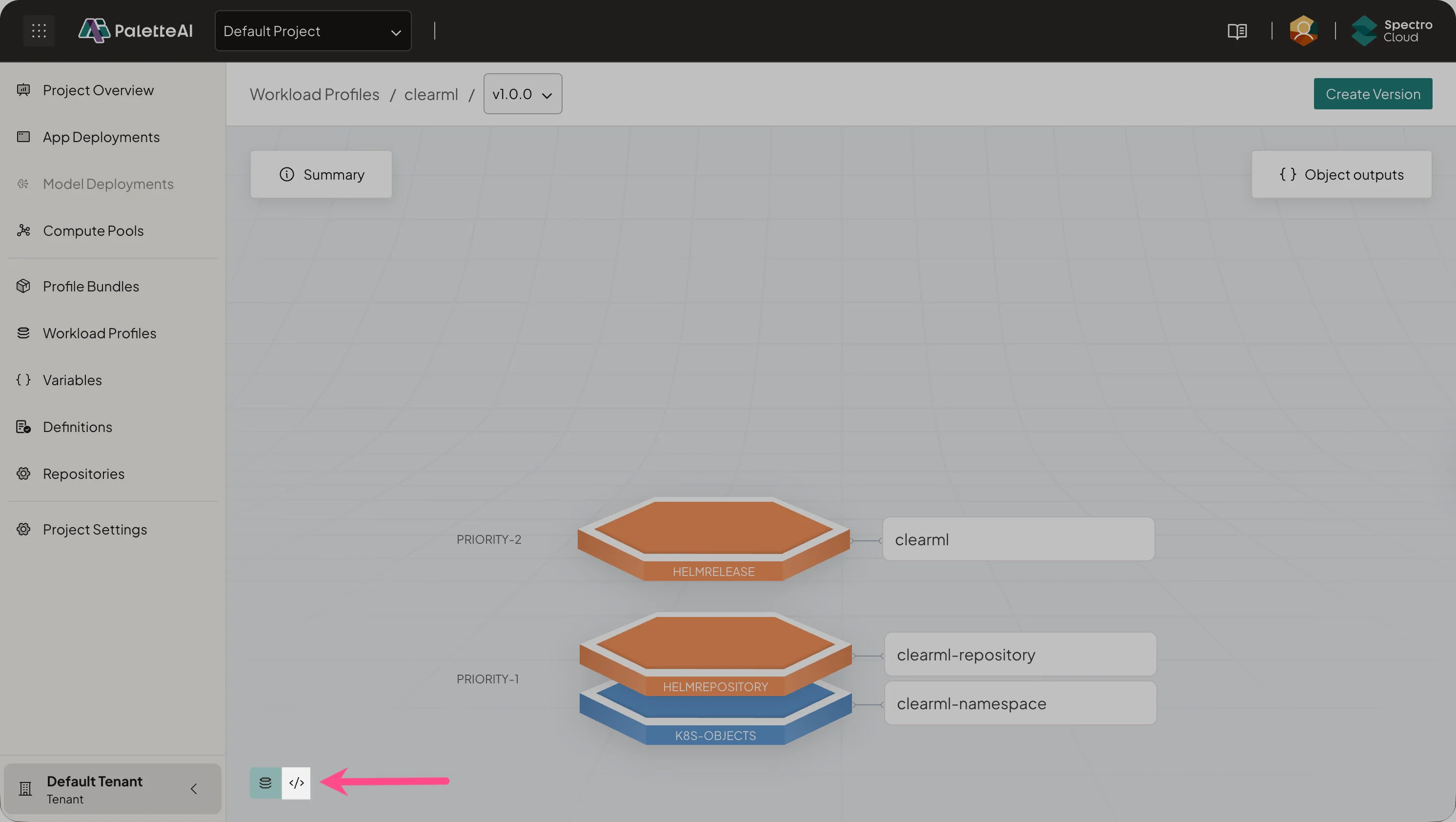
-
Scroll to the
spec.workload.objectOutputRefssection of your workload profile YAML and confirm the YAML contains the expected values. The following example is for an application exposed via a service.Example objectOutputRefs for servicespec:
workload:
objectOutputRefs:
- name: webserverIp
pathRef:
apiVersion: v1
kind: Service
path: .status.loadBalancer.ingress[0].ip
name: clearml-webserver
namespace: '{{ .var.clearml-namespace }}'
skipHash: false
- name: webserverPort
pathRef:
apiVersion: v1
kind: Service
path: .spec.ports[0].port
name: clearml-webserver
namespace: '{{ .var.clearml-namespace }}'
skipHash: false -
If you have an application or model deployed with a workload profile, navigate to the left main menu and select either App Deployments or Model Deployments.
-
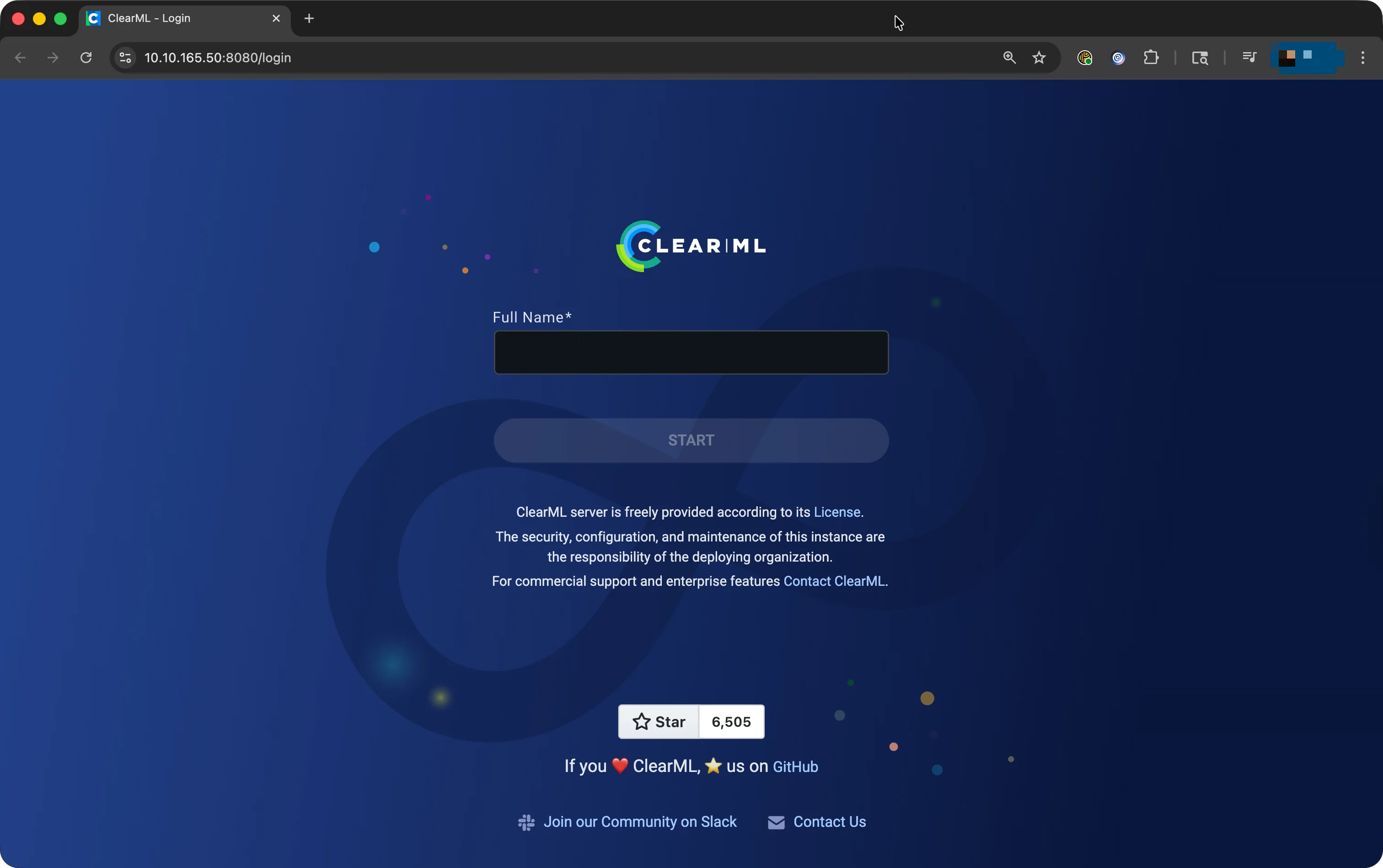
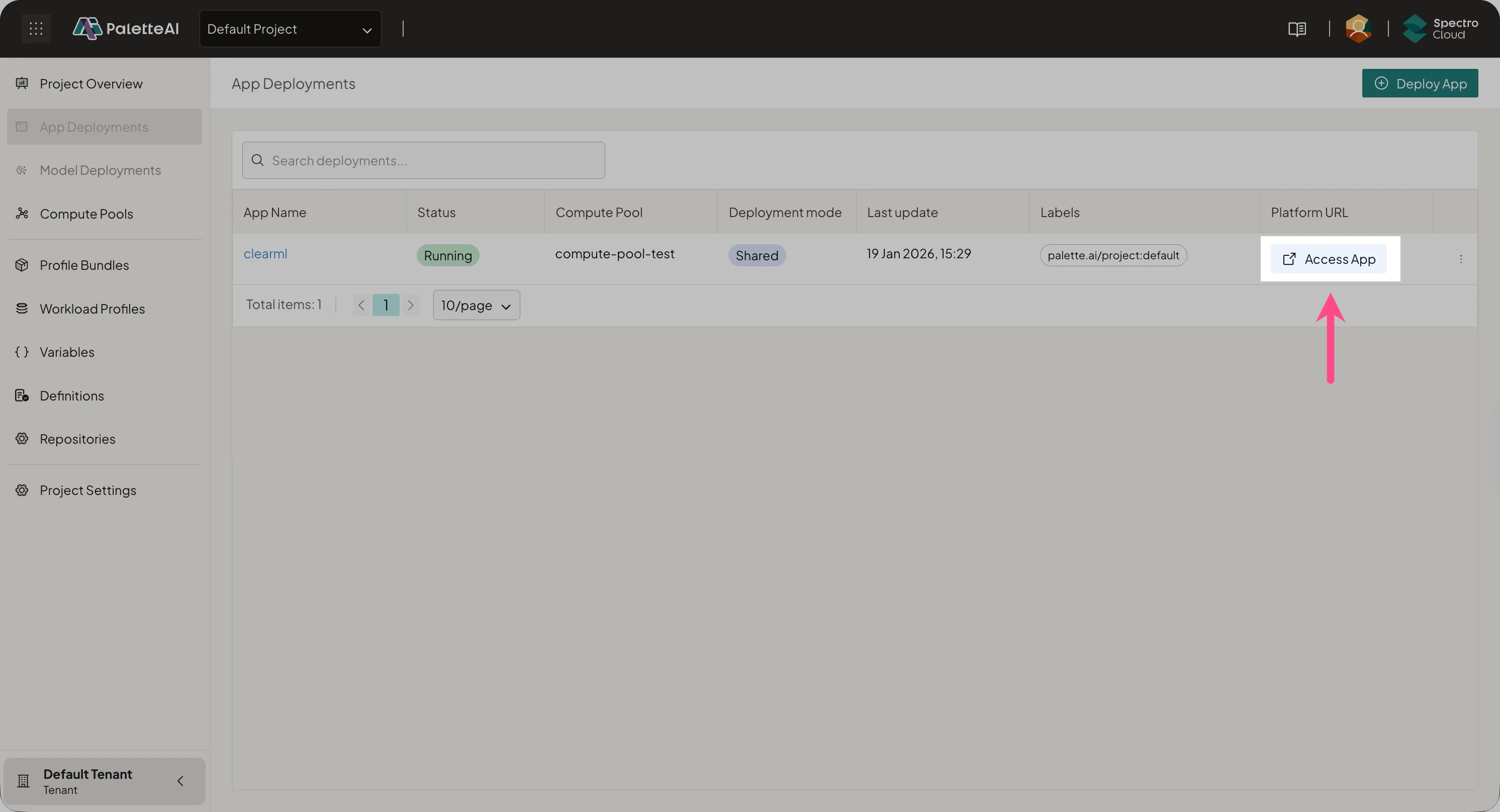
Locate your application or model. In the Platform URL column, select Access App to open your application or model in a new browser tab. For example, using the previous
objectOutputRefsfor a ClearML application opens the following web page.