Create and Manage Compute Pools
This guide describes how to create and manage Compute Pools. Compute Pools are Kubernetes clusters where AI and ML applications run. You can create Dedicated clusters or Shared clusters. Refer to the Compute Pool concepts page to understand the different variants and their use cases.
Prerequisites
Before you create a Compute Pool, confirm that you have the following PaletteAI resources configured.
-
A Project in
Readystatus -
A Settings resource with valid Palette API credentials
-
A Profile Bundle of type Infrastructure or Fullstack
-
A Compute resource with available edge hosts registered in Palette
-
A reserved Virtual IP (VIP) address for the cluster control plane endpoint. The VIP must be allocated from your network infrastructure team or IPAM system before provisioning.
The compute pool variant (Dedicated or Shared) cannot be changed after creation. If you need to switch variants, you must delete the Compute Pool and create a new one. Review the Compute Pool concepts page to select the appropriate variant before proceeding.
Create Dedicated Compute Pool
A Dedicated Compute Pool provisions a single Kubernetes cluster for your workloads.
Prerequisites
- A user with Project Editor or Admin permissions
Enablement
-
Log in to PaletteAI, and then open your Project.
-
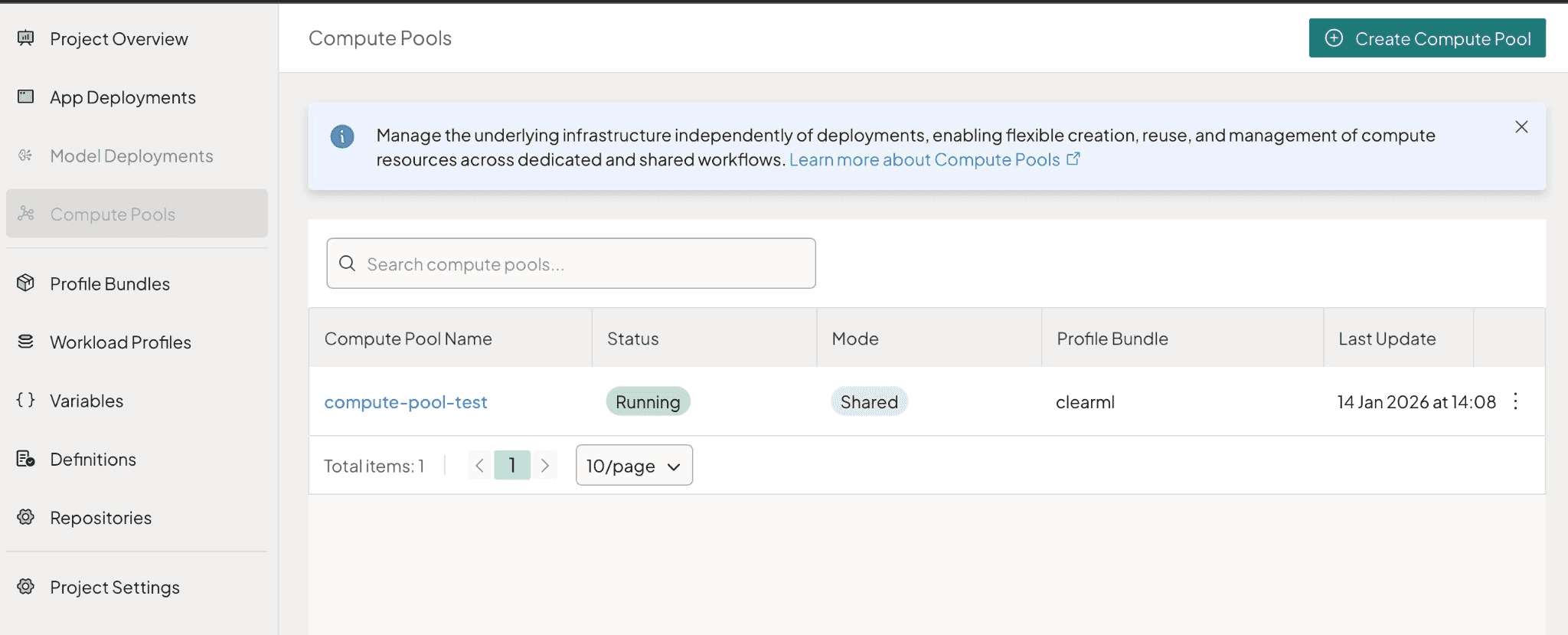
In the left main menu, select Compute Pools.
-
Select Create Compute Pool.
-
In the General information screen, set the name and tags for your compute pool to help track and organize it across projects.
-
Enter a unique Compute pool name. The name must be 3-33 characters, start with a lowercase letter, end with a lowercase letter or number, and contain only lowercase letters, numbers, and hyphens. The name must be unique within the Project.
-
(Optional) Add a Description.
-
(Optional) Expand Metadata to add labels and annotations for sorting and filtering.
Select Next.
-
-
In the Mode screen, configure how you want to provision this compute pool.
-
Choose Create new resources to provision a new compute pool by deploying fresh resources managed by PaletteAI.
-
Select the deployment mode:
- Dedicated resources - Get exclusive access to physical resources with security and no resource contention. Use this for production, training, or sensitive data.
- Shared resources - Create a compute pool that is shared across multiple teams and personas. Use this for development, experimentation, or budget-conscious use cases. When selected, enter the Number of clusters (required, minimum 1) to specify how many clusters to provision for the shared compute pool.
Select Next.
-
-
In the Profile Bundle screen, select profile bundles to apply to the compute pool.
-
Choose Select Profile Bundle. If a Profile Bundle is already selected, select Replace to change it.
-
In the Profile Bundle selection drawer, choose an Infrastructure or Fullstack Profile Bundle from the table.
-
Select Save. The selected Profile Bundle appears with its details.
-
Select the Cloud Type. Only Edge Native is supported at this time.
-
Select the Profile Bundle Version.
Select Next.
-
-
In the Variables screen, configure variables for selected profile bundles.
-
The variables table displays all configurable variables with Name, Value, Description, and Source columns.
-
Required variables are marked with an asterisk (
*) next to the name. Enter or update the Value for each variable. Boolean variables display a toggle switch; all other types use a text input. -
The Description column provides context for the expected input. The Source column shows which profile the variable comes from, displayed as a
ClusterProfileorWorkloadProfilebadge. -
(Optional) Select Deployment settings in the top-right to configure application deployment settings that apply to all application Profile Bundles.
-
Enter the Namespace where workloads are deployed. This field is required and defaults to the Project namespace. The namespace must start and end with alphanumeric characters and can only contain lowercase letters, numbers, hyphens, and periods.
-
(Optional) Toggle Merge variables to control how variables with the same name across multiple profiles are handled. When enabled (the default), each variable name appears once and the provided value applies to all profiles. When disabled, each profile source has its own row and values are set per profile.
warningIf profiles reuse a variable name for different functions, the variables are merged automatically when this setting is enabled, which may produce unintended results. Use distinct, meaningful variable names to avoid conflicts.
-
(Optional) Expand Metadata to assign labels and annotations to the workload and the namespace the workload is installed onto in the compute pool.
-
Select Confirm.
-
Select Next.
-
-
In the Resource groups screen, apply a filter to ensure only specific compute resources are automatically selected when provisioning the compute pool.
-
If resource groups are configured, they appear in the Control Plane Resource Groups and Worker Resource Groups sections.
-
If no resource groups are listed, verify that your Compute resource has edge hosts with resource group labels assigned. The key/value pairs displayed are derived from the
resourceGroupsfield on available compute resources in your Project. -
Resource group keys typically use the
palette.ai.rg/prefix. For example,palette.ai.rg/network-pool: "1".
Select Next.
-
-
In the Node config screen, configure settings for the control plane and worker pools. You can create multiple worker pools to match your compute needs.
-
In the left panel under Node Pools, select Control Plane Pool or a worker pool (e.g., Worker Pool 1) to configure.
-
The Profile Bundle Requirements panel at the top shows the requirements from your selected Profile Bundle (node count, architecture, CPUs, memory, GPU family, GPU count, GPU memory).
-
(Optional) If Compute Config resources exist in your Project, a gear icon appears in the top-right. Select the gear icon to open the Advanced settings drawer.
-
Select a Compute Config from the drop-down menu. A Compute Config is a reusable blueprint for compute settings. Selecting an existing configuration auto-populates default values for the compute pool setup, including control plane and worker pool settings (node count, architecture, CPU, memory, GPU, labels, annotations), as well as deployment settings (SSH keys, deletion policy, and edge configuration).
-
Select Apply. A confirmation dialog warns that selecting a Compute Config overwrites your current node configuration values. Select Replace values to apply, or Cancel to keep your current settings.
-
Control Plane Pool Configuration:
Field Description Required Node Count Number of control plane nodes. Valid values: 1,3, or5.✅ Run workloads on control plane Toggle to enable workloads on control plane nodes. Enable for single-node clusters (required for workloads to schedule). Disable for multi-node clusters to keep the control plane dedicated. Default: off. ❌ Architecture CPU architecture. AMD64(default) orARM64.✅ CPU Count Number of CPU cores for each control plane node. ❌ Memory Memory in MiB (for example, 8192). The UI also accepts values like8 GBwhich are converted to MiB.❌ Annotations / Labels Expand to add metadata key-value pairs to control plane nodes. ❌ Taints Expand to add node taints. Each taint requires a key, value, and effect ( NoSchedule,PreferNoSchedule, orNoExecute).❌ Worker Pool Configuration:
The wizard starts with one worker pool. Select Add Worker Pool in the Node Pools header to add more pools. To remove a worker pool, select the Remove button on the pool tab (the first worker pool cannot be removed).
For each worker pool:
Field Description Required Architecture CPU architecture. AMD64(default) orARM64.✅ CPU Count Number of CPU cores for each worker node. Each worker pool must specify either CPU or GPU resources. ❌ Memory Memory in MiB (for example, 16384for 16 GiB). The UI also accepts values like16 GB.❌ Min Worker Nodes Minimum number of worker nodes to provision. Default: 1.❌ GPU family Expand GPU Resources and select Add GPU family to configure. For example, NVIDIA-H100. Required when configuring GPU resources.❌ GPU count Number of GPUs per node. Required when a GPU family is selected. ❌ GPU memory GPU memory per node. ❌ Annotations / Labels Expand Metadata to add key-value pairs to worker nodes. ❌ Taints Expand to add node taints. Each taint requires a key, value, and effect ( NoSchedule,PreferNoSchedule, orNoExecute).❌ - Repeat configuration for each worker pool.
Select Next.
-
-
In the Deployment screen, configure deployment settings across three sections.
General Configuration:
In the left panel, select General.
Field Description Required Deletion Policy Controls what happens when the Compute Pool is deleted. delete(default) removes the cluster and all its resources from Palette.orphankeeps the cluster running independently with PaletteAI management removed.❌ Settings Ref The Settings resource that provides Palette API credentials. Select from the drop-down menu. If not set, the Project default is used. ❌ SSH Keys SSH public keys for cluster node access. ❌ Select Configure to open the Override settings drawer where you can modify the deletion policy, change the Settings Ref, and add SSH keys using the Add SSH Key button.
Edge Configuration:
In the left panel, select Edge Configuration, and then select Configure to open the Override edge configuration drawer.
Field Description Required VIP Virtual IP address for the cluster control plane endpoint. Must be a valid IPv4 address. The VIP is used as the edge cluster's Kubernetes API server endpoint. ✅ Two Node Deployment Toggle to enable a two-node edge deployment configuration. ❌ Network Overlay Toggle to configure overlay network for pod-to-pod communication. ❌ Enable Static IP Toggle to use a static IP for the network overlay. Only available when Network Overlay is enabled. ❌ CIDR The network CIDR for the overlay (for example, 192.168.1.0/24). Required when Network Overlay is enabled.✅ Overlay Network Type The overlay network type (for example, VXLAN). Only available when Network Overlay is enabled.❌ Select Save changes.
tipNTP servers are not configurable in the Edge Configuration step. If NTP servers are configured in a Compute Config, they are inherited when the Compute Config is applied in the Node config screen and displayed in the Edge Configuration card.
Multi-cluster registration (Advanced):
In the left panel, select Multi-cluster registration.
Field Description Required Sync Labels Toggle to sync labels from Klusterlet to all agent resources. ❌ Klusterlet / AddOns Select Configure to open a YAML editor drawer where you can configure managed cluster settings. ❌ Cluster ARN The ARN for the managed cluster. ❌ Timeout Timeout in seconds for clusteradm operations. ❌ Log Verbosity Log verbosity level. ❌ Purge Klusterlet Operator Under Clean up config. Purge the Klusterlet operator when the Klusterlet is unjoined. ❌ Purge Kubeconfig Secret Under Clean up config. Delete the kubeconfig secret after the agent takes over managing the workload cluster. ❌ Select Next.
-
In the Summary screen, review and confirm all compute pool configuration. The summary displays an overview of your general information, resource groups, node configuration, and deployment settings. The summary is read-only. To make changes, select a previous step in the left sidebar to navigate back.
infoMulti-cluster registration settings (Sync Labels, Cluster ARN, Timeout, Log Verbosity, and Clean up config) are not displayed in the summary. Review these settings in the Deployment screen before submitting.
-
Review your settings.
-
Select Submit.
-
Validate
-
In the left main menu, select Compute Pools.
-
Confirm that the Compute Pool appears with status Provisioning.
-
Confirm that the status changes to Running. Provisioning typically takes 10-15 minutes depending on cluster size and edge host availability. If the status remains Provisioning beyond this time, select the Compute Pool and review its events for errors.
-
Select the Compute Pool, and then review details such as cluster status, hardware capacity, allocation, and deployed workloads.
If you encounter issues during provisioning, refer to Troubleshooting Compute Pools. Troubleshooting steps use kubectl commands that require access to the hub cluster.
Modify Compute Pool
Update a Compute Pool by updating its configuration. Currently, only a limited set of fields can be modified after creation.
Limitations
Most Compute Pool configuration fields cannot be changed after creation. The system currently supports only metadata and Profile Bundle modifications.
Supported Modifications
-
General metadata (description, labels, annotations)
-
Profile Bundle version updates (includes variable management)
Immutable Fields
The following fields cannot be modified after Compute Pool creation:
-
clusterVarianttype (cannot change between Dedicated and Shared) -
profileBundleRef.nameandprofileBundleRef.namespace
Node Configuration (Dedicated and Shared):
-
Control plane configuration (
nodePoolRequirements.controlPlanePool) -
Worker pool configuration (
nodePoolRequirements.workerPools) -
Resource groups (
controlPlaneResourceGroups,workerResourceGroups) -
edge.vip- Virtual IP address -
cloudType- Cloud provider type
To change immutable fields, you must delete the existing Compute Pool and create a new one with the desired configuration.
Prerequisites
-
A user with Project Editor or Admin permissions
-
An existing Compute Pool
Enablement
-
Log in to PaletteAI, and then open your Project.
-
In the left main menu, select Compute Pools.
-
Select the Compute Pool you want to modify.
-
In the top-right, select Settings and then select Compute Pool Settings.
-
Modify the supported fields:
- Update the Description in the General section.
- Add or update Labels and Annotations in the metadata section.
- Select the Profile Bundle tab to update the Profile Bundle version.
- Update variables for the selected Profile Bundle version.
-
Select Save to apply your changes.
Validate
-
Verify the changes appear in the Compute Pool overview.
-
Check the Compute Pool status to confirm it remains in Running state.
Delete Compute Pool
Delete a Compute Pool when you no longer need it. Deleting the Compute Pool deletes the Kubernetes clusters and all workloads running on them.
Deleting a Dedicated or Shared Compute Pool deletes the Kubernetes clusters and workloads running on the clusters. Back up important data before you delete a Compute Pool.
Prerequisites
- A user with Project Admin permissions with the
computepools:deletepermission
Enablement
-
Log in to PaletteAI, and then open your Project.
-
In the left main menu, select Compute Pools.
-
Delete the Compute Pool using one of the following methods:
From the list page:
-
Select the three-dot menu on the Compute Pool row.
-
Select Delete.
From the detail page:
-
Select the Compute Pool to open its detail page.
-
In the top-right, select Settings and then select Delete Compute Pool.
-
-
In the confirmation dialog, review the warning that this action cannot be undone.
-
Select Delete to confirm, or Cancel to keep the Compute Pool.
Validate
-
In the left main menu, select Compute Pools.
-
Verify the Compute Pool no longer appears in the list.
Next Steps
-
Deploy applications to your Compute Pool.
-
Troubleshoot common Compute Pool issues.
-
Compute Pool Configuration Reference for all configuration options.