Install PaletteAI on GKE
This guide covers installing PaletteAI on Google Kubernetes Engine (GKE). The deployment uses the hub-as-spoke pattern with Zot as the Open Container Initiative (OCI) registry.
Prerequisites
-
An existing Kubernetes cluster. This is the hub cluster PaletteAI will be installed on.
-
Cluster admin rights to the hub cluster.
-
The following minimum Kubernetes versions:
Cluster Type Kubernetes Version Hub >= 1.32.0 Spoke >= 1.32.0 -
The following minimum resource requests:
Cluster Type CPU Memory Storage Hub 3388m 2732 Mi 10Gi Spoke 1216m 972 Mi 10Gi -
The ability to install the PaletteAI Helm chart, which is hosted publicly via AWS ECR.
-
The following binaries installed locally:
-
curlorwgetto download the Helm chart values file. -
A text editor, such as
vi, to edit the Helm chart values file. -
helm version >= 3.17.0. You must have network access to the hub cluster's Kubernetes API server from the machine where you will issue the
helm installcommand. -
kubectl version >= 1.31.0.
-
The
KUBECONFIGenvironment variable set to the path of the PaletteAI hub cluster'skubeconfigfile.export KUBECONFIG=<kubeconfig-location>
-
-
-
Your hub cluster requires the Kubernetes API server to trust Dex as an identity provider. Dex is deployed as a part of the PaletteAI installation. The requirement to configure the hub cluster's Kubernetes API server to trust Dex is only applicable to the Hub cluster and not the spoke clusters. To learn more about configuring the Kubernetes API server to trust Dex, refer to our Configure Kubernetes API Server to Trust OIDC Provider guide.
-
By default, PaletteAI is configured to terminate HTTPS at the load balancer. To enable this behavior you need:
-
A domain name available for PaletteAI.
-
The HttpLoadBalancing add-on enabled on the GKE cluster.
-
An optional static external IP address for the load balancer.
infoPaletteAI communicates internally over HTTPS. Refer to our Security page for a detailed explanation of the security architecture.
-
-
PaletteAI uses Dex as an OIDC provider. Dex provides a number of connectors to allow users to log in to PaletteAI using their existing identity provider. To enable Google Workspace as an OIDC provider for Dex, you must configure a Google Service Account, export a JSON key, and create a Kubernetes Secret containing the JSON key in the same namespace that PaletteAI will be installed. For detailed instructions, refer to the Dex documentation.
Once you download the JSON key, issue the following command to create a Kubernetes Secret containing the JSON key in the same namespace that Mural will be installed.
# create the namespace that Mural will be installed in, if it doesn't exist
kubectl create namespace mural-system

# create the secret containing the JSON key
kubectl create secret generic mural-google-service-account --from-file=googleAuth.json=/path/to/googleAuth.json --namespace mural-system -
To deploy PaletteAI with dedicated GKE spoke clusters, you must configure additional ClusterRoles and ClusterRoleBindings on each spoke. These permissions allow the hub's FleetConfig controller to bootstrap Open Cluster Management (OCM) components on the spoke clusters. Refer to the GKE Spoke Setup guide before proceeding.
Enablement
-
Download the latest Helm chart values file. This example uses
curl.curl --output values.yaml --silent https://docs.palette-ai.com/resources/assets/hosted/helm/values.yaml - Open the Helm chart values file in a text editor of your choice and complete the following sections. This example uses
vi. -
The
globalconfiguration is used to configure overarching settings for the PaletteAI deployment. Review and modify the following values as necessary.-
Set
global.dns.domainto the primary domain for the deployment. Do not include a protocol. For example, useexample.org, nothttps://example.org.global:
dns:
domain: 'example.acme.org' -
In
global.auditLogging.basicAuth, change the defaultusernameandpasswordfor audit logging. The session secret is used for encoding and decoding the PaletteAI session cookie. Credentials are not stored in the browser. The cookie is used to map the session to the user so that the server can retrieve the user's credentials.global:
auditLogging:
basicAuth:
username: REPLACE_WITH_YOUR_USERNAME
password: REPLACE_WITH_YOUR_PASSWORD -
Configure the metrics collection settings. By default, the appliance deploys a Prometheus server on the hub cluster at port
30090. Spoke clusters use Prometheus agents to collect metrics and ship them to the Prometheus server via remote_write. Setglobal.metrics.prometheusBaseUrlto the domain or VIP address of your leader node with port30090. Ensure you do not include any API paths, only the protocol, host, and port.global:
metrics:
prometheusBaseUrl: 'https://example.acme.org:30090'
timeout: '5s'
scrapeInterval: '15s'
agentType: 'prometheus-agent-minimal'
username: ''
password: ''The
agentTypeis set toprometheus-agent-minimalby default. This agent collects only spoke cluster CPU and GPU utilization metrics. If you are using an external Prometheus server instead of the hub-based deployment, configureglobal.metrics.prometheusBaseUrlto point to your external Prometheus server's URL (e.g.,https://your-external-prometheus:9090). In this case, you may also changeglobal.metrics.agentTypetoprometheus-agentto ship all node-exporter and dcgm-exporter metrics from spoke clusters for comprehensive observability.If your Prometheus server requires basic authentication, configure the
usernameandpasswordfields. Leave these empty if authentication is not required.tipIf you prefer to use an external Prometheus server, you may find the Deploy Monitoring Stack guide helpful for setting up a comprehensive monitoring solution.
-
Set
global.kubernetesProvidertoGKE-Ingress.global:
kubernetesProvider: GKE-IngressComplete
globalconfiguration section
FleetConfig
-
-
To configure a GKE FleetConfig, update the following parameters in the
fleetConfigsection of your Helm chart.Parameter Description hub.apiServerThe hub cluster's API server endpoint. This is found in the hub cluster's kubeconfig file. spokes[i].klusterlet.forceInternalEndpointLookupDictates if the internal endpoint is looked up via the cluster-info ConfigMapinstead of the hub cluster's public API server endpoint.warningDo not change the
spokes[i].name: hub-as-spokevalue if using the hub-as-spoke pattern when installing PaletteAI.fleetConfig:
hub:
apiServer: "https://<public-ip>:<port>"
spokes:
- name: hub-as-spoke # do not edit this name if you are using the default hub-as-spoke mode
klusterlet:
forceInternalEndpointLookup: falseThe above example outlines the minimal configuration required to install a hub-as-spoke
FleetConfigfor GKE. If you are using a dedicated hub with separate spoke clusters, you must also do the following for each spoke cluster.Hub with dedicated spoke clusters
-
Ensure the spoke cluster has been configured with the correct permissions to join the hub cluster. See the Set Up GKE Spokes guide for details.
-
Create a copy of the spoke kubeconfig.
export KUBECONFIG=spoke-i.kubeconfig
gcloud container clusters get-credentials <spoke-cluster-name> --region <region> --project <project-id> -
Upload the copy of the kubeconfig to a Kubernetes Secret on the hub cluster.
KUBECONFIG=hub.kubeconfig kubectl create secret generic spoke-kubeconfig-i --from-file=kubeconfig=spoke-i.kubeconfig --namespace <SPOKE_NAMESPACE> -
Update the
fleetConfig.spokes[i].kubeconfigto include a reference to the secret created above. Make sure to also setkubeconfig.inCluster: false.fleetConfig:
spokes:
kubeconfig:
# The context to use in the kubeconfig file. Leave empty to use the current context.
context: ''
# If set, the kubeconfig will be read from the cluster. Only applicable for same-cluster operations.
inCluster: false
# A reference to an existing secret containing a kubeconfig. Must be provided for remote clusters.
# For same-cluster, must be provided unless InCluster is set to true.
secretReference:
# The name of the secret.
name: 'spoke-kubeconfig-i'
# The map key to access the kubeconfig.
kubeconfigKey: 'kubeconfig' -
Rename
fleetConfig.spokes[i].namefromhub-as-spoketo your name of choice.
Canvas
-
-
To configure the ingress for Canvas, set
canvas.ingress.enabledtotrue. Enter your own domain name forcanvas.ingress.domain, omitting the HTTP/HTTPS prefix. Change thecanvas.ingress.ingressClassNametogce.canvas:
ingress:
enabled: true
annotations: {}
ingressClassName: gce
domain: replace.with.your.domain # No HTTP/HTTPS prefix.
matchAllHosts: false
tls: [] - Optionally, add the
kubernetes.io/ingress.global-static-ip-nameannotation to assign an existing GCP Global Static IP to the ingress. - In the
canvas.ingress.pathssection, forpath: /ai, set thepathTypetoPrefix. Next, add an additional/dexpath with apathTypeofPrefix, anameofdex, andport.numberof5556. This will create a single Ingress resource for both Canvas and Dex. The GKE Ingress controller will use this Ingress resource to create a single load balancer for both Canvas and Dex. - Set
canvas.enableHTTPtotrue. This supports TLS termination at the load balancer.canvas.ingress.tlsremains empty as a result. -
The last portion of the Canvas configuration is the OIDC configuration. If you defer configuring OIDC for Dex, you may do the same for Canvas and configure it later.
In the
canvas.oidcsection, enter a unique string for thesessionSecret. ForredirectURL, replacereplace.with.your.domainwith your domain. Do not remove the/ai/callbackpath.canvas:
oidc:
sessionSecret: 'REPLACE_WITH_A_UNIQUE_STRING'
sessionDir: '/app/sessions'
issuerK8sService: 'https://dex.mural-system.svc.cluster.local:5554/dex'
skipSSLCertificateVerification: true
redirectURL: 'https://replace.with.your.domain/ai/callback'If you did not configure your Kubernetes cluster to trust Dex as an OIDC provider, then you must configure the
canvas.impersonationProxysection to enable user impersonation.The example below shows how to configure the local Dex user
admin@example.comto be mapped to an example Kubernetes groupadmin. Refer to our Configure User Impersonation guide to learn more about how to configure user impersonation for OIDC groups and other use cases.Example user impersonation setupcanvas:
impersonationProxy:
enabled: true,
userMode: 'passthrough',
groupsMode: 'map',
userMap: {},
groupMap: {},
dexGroupMap:
'admin@example.com': [ 'admin' ]Complete
canvasconfiguration sectionDex
-
Dex authenticates users to PaletteAI through SSO. You can configure Dex to connect to an upstream OIDC provider or a local user database. For this installation, you will configure Dex to connect to an OIDC provider. If you want to configure OIDC later, you can do so; however, Dex still requires some basic configuration.
-
Set
dex.config.issuerto your domain. Do not remove the/dexpath.dex:
config:
issuer: 'https://replace.with.your.domain/dex' -
This next part may be deferred for later, but we strongly recommend configuring at least one connector. Set the
dex.config.connectorsto the connectors you want to use. The Dex documentation has examples for each of the connectors. Following is an example configuration for a Google connector.Example Google Workspace configurationdex:
config:
connectors:
- type: google
id: google
name: Google Workspace
config:
clientID: xxxxxxxxxxxxxxx
clientSecret: xxxxxxxxxxxxxxx
redirectURI: https://replace.with.your.domain/dex/callback # Dex's callback url for authorized code flow that will redirect to our application's callback url
promptType: consent
hostedDomains:
- replace.with.your.domain # no HTTP/HTTPS prefix
groups:
- admin
- sre
serviceAccountFilePath: /etc/google/googleAuth.json # Path to the mounted service account file
domainToAdminEmail:
example.com: admin@example.com -
Proceed to the
dex.config.staticClientssection. ReplaceREPLACE_WITH_A_UNIQUE_STRINGwith a unique string andreplace.with.your.domainwith your domain. Do not remove the/ai/callbackpath for themuralclient.dex:
config:
staticClients:
- id: mural
redirectURIs:
- 'https://replace.with.your.domain/ai/callback'
name: 'mural'
secret: 'REPLACE_WITH_A_UNIQUE_STRING'
public: false
trustedPeers:
- kubernetes
- id: kubernetes
redirectURIs:
- 'https://replace.with.your.domain'
name: kubernetes
secret: 'REPLACE_WITH_A_UNIQUE_STRING'
public: false
trustedPeers:
- mural -
Next, configure the
dex.config.staticPasswordssection. We strongly recommend changing the default user (admin) and password (password) to strong values. The following example is the default user and password in bcrypt format. Remember to use a bcrypt hash generator to generate the password hash. TheuserIDcan be any unique string.warningIf you did not configure any connectors, you must configure at least one static user, which is used to access the PaletteAI UI. Static Dex users automatically inherit admin privileges through the service account. Dex does not support groups for local static users. To use groups for local static users, you must use the User Impersonation feature.
dex:
config:
staticPasswords:
- email: 'admin@example.com'
hash: '$2a$12$Ot2dJ0pmdIC2oXUDW/Ez1OIfhkSzLZIbsumsxkByuU3CUr02DtiC.'
username: 'admin'
userID: '08a8684b-db88-4b73-90a9-3cd1661f5466' -
Add the following volumes and volume mounts to allow the Dex service to access the Google service account file.
warningDo not remove existing volumes and volume mounts in the
values.yamlfile.dex:
volumes:
# do not remove existing volumes
- name: tls-cert-vol
secret:
secretName: mural-dex-serving-cert
- name: google-auth-vol
secret:
secretName: mural-google-service-account # The name of the secret that was created earlierdex:
volumeMounts:
# do not remove existing volumeMounts
- mountPath: /etc/k8s-webhook-certs
name: tls-cert-vol
readOnly: true
- mountPath: /etc/google
name: google-auth-vol
readOnly: true -
Add the following annotation to the Dex service to allow the Dex service to enable GKE Ingress Load Balancer health checks.
dex:
service:
annotations:
cloud.google.com/backend-config: '{"default":"dex-backendconfig"}' -
Disable Dex's ingress resource. The GKE Ingress controller will use the Ingress resource created for Canvas to create a single load balancer for both Canvas and Dex.
dex:
ingress:
enabled: falseComplete
dexconfiguration section
Flux2
-
-
Set
flux2.policies.createtofalseto disable the Flux network policies. These policies, if enabled, prevent ingress traffic from reaching their target services.flux2:
policies:
create: falseinfoThis step is not required if the hub and all spoke clusters are configured to use a common, external OCI registry. An external OCI registry is configured in the
fleetConfig.spokes[*].ociRegistryandhue.ociRegistrysections of thevalues.yamlfile.Complete
flux2configuration sectionIngress-Nginx
-
Disable
ingress-nginx. GKE provides a native ingress controller that supports TLS termination at the load balancer.ingress-nginx:
enabled: falseZot
-
Set
zot.ingress.enabledtotrueand add the annotations below for the ingress to direct traffic to Zot.zot:
ingress:
enabled: true
annotations:
nginx.ingress.kubernetes.io/use-regex: "true"
nginx.ingress.kubernetes.io/rewrite-target: /$1 - For
zot.ingress.hosts[i].host, add the domain you set in theglobal.dns.domainparameter. - Change
zot.httpGet.schemetoHTTPso that the HTTP probe will work. -
Requests for
my.domain.com/zot/*are sent to thezotservice endpoint with the/zotportion of the path removed. -
Requests for
my.domain.com/v2andmy.domain.com/v2/*are also sent to thezotservice endpoint. Therefore, Zot ownsmy.domain.com/v2. No other service can expect to serve traffic via that route. - Modify the
zot.configFiles.config.jsonsection to remove thetlssection. TLS is terminated at the load balancer, so thetlssection is not needed. - To add additional users, add them to the
htpasswdsection. Use thehtpasswdutility or a similar tool that can generate a bcrypt hash. -
fleetConfig.spokes[i].ociRegistry.endpoint -
fleetConfig.spokeValuesOverrides.hue.ociRegistry.endpoint -
hue.ociRegistry.endpoint -
Install the
mural-crdsHelm chart. This chart contains the Custom Resource Definitions (CRDs) required by PaletteAI and must be installed before themuralHelm chart.helm install mural-crds oci://public.ecr.aws/mural/mural-crds --version 0.7.0-hotfix.3 \
--namespace mural-system --create-namespace --waitExample outputNAME: mural-crds
LAST DEPLOYED: Tue May 27 09:34:33 2025
NAMESPACE: mural-system
STATUS: deployed
REVISION: 1Next, install PaletteAI using the
muralHelm chart, which is thevalues.yamlfile you configured in the previous steps.helm install mural oci://public.ecr.aws/mural/mural --version 1.0.6 \
--namespace mural-system --create-namespace --values values.yaml --waitExample outputNAME: mural
LAST DEPLOYED: Tue May 27 09:39:48 2025
NAMESPACE: mural-system
STATUS: deployed
REVISION: 1DNS
-
Once PaletteAI is deployed, get the IP address of the load balancer the GKE Ingress controller deployed.
kubectl get ingress canvas --namespace mural-systemExample outputNAME CLASS HOSTS ADDRESS PORTS AGE
canvas gce mural.example.com YOUR_IP 80 32m - Create a DNS record for the
ADDRESSload balancer IP. If you are using Cloud DNS, create an A record in your domain's hosted zone and select the load balancer as the target. Check out the Configure Cloud DNS alias record for your target DNS guide for more information.
vi values.yaml
Global
canvas:
  ingress:
    annotations:
      kubernetes.io/ingress.global-static-ip-name: <static-ip-name>
canvas:
  ingress:
    paths:
      - path: /ai
        pathType: Prefix
        backend:
          service:
            name: canvas
            port:
              number: 2999
      - path: /dex
        pathType: Prefix
        backend:
          service:
            name: dex
            port:
              number: 5556
canvas:
  enableHTTP: true
zot:
  ingress:
    hosts:
      - host: my.domain.com
        paths:
          - path: /zot/(.*)
zot:
  httpGet:
    scheme: HTTP
Together, these configurations allow you to leverage a single load balancer, as opposed to requiring a second load balancer dedicated to Zot.
The resulting Ingress resources produce two sets of redirects:
zot:
  configFiles:
    config.json: |-
      {
        "storage": { "rootDirectory": "/var/lib/registry" },
        "http": { "address": "0.0.0.0", "port": "5000","auth": { "failDelay": 5, "htpasswd": { "path": "/secret/htpasswd" } } },
        "extensions": {"search": {"enable": true}, "ui": {"enable": false}},
        "log": { "level": "debug" }
      }
zot:
  secretFiles:
    htpasswd: |-
      admin:$2y$05$vmiurPmJvHylk78HHFWuruFFVePlit9rZWGA/FbZfTEmNRneGJtha
      user:$2y$05$L86zqQDfH5y445dcMlwu6uHv.oXFgT6AiJCwpv3ehr7idc0rI3S2G
If the recommended configuration will not work in your environment, you may set zot.service.type: LoadBalancer and zot.ingress.enabled: false. Note that this will require an additional load balancer and an additional DNS A or CNAME record. The DNS record can be configured after the Helm installation; however, you must pre-configure the following fields to use the correct DNS name:
If you use a dedicated load balancer for Zot and terminate TLS inside your cluster, the endpoint must include a :5000 suffix when provided to other services that need the registry endpoint (e.g., oci://zot.my.domain.com:5000).
Complete zot configuration section
Helm Install
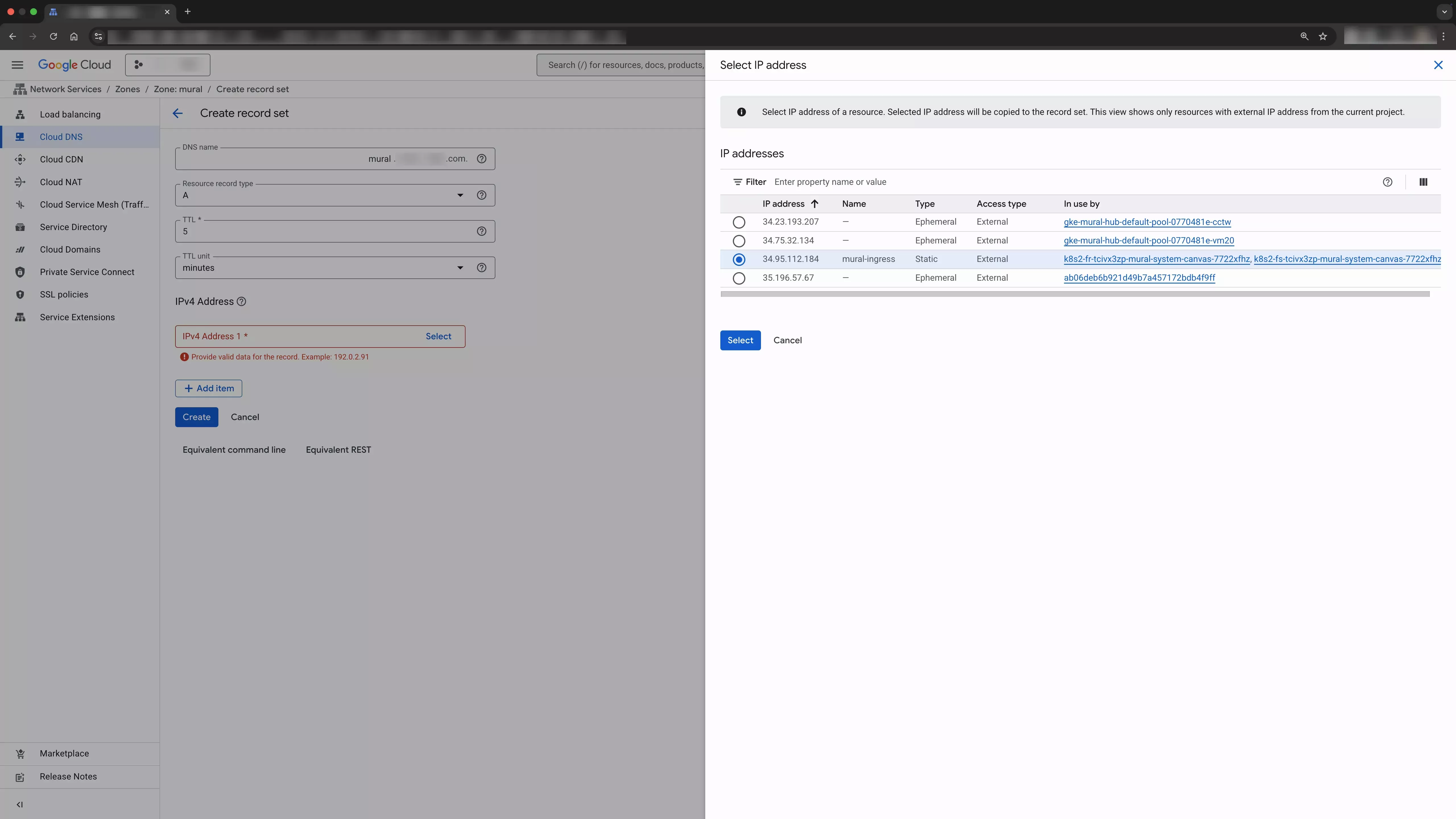
It may take a few minutes for the DNS changes to take effect.
You have now deployed PaletteAI on an AWS EKS cluster. If you are using the user impersonation feature or you have set up an OIDC provider, you can now log in to PaletteAI. Alternatively, you can use the default Dex local user to log in to PaletteAI.
If you need to make changes to PaletteAI, review the Helm Chart Configuration Reference page. You can trigger an upgrade to the PaletteAI installation by updating the values.yaml file with the changes you want to make and issuing the following command.
helm upgrade mural oci://public.ecr.aws/mural/mural --version 1.0.6 \
  --namespace mural-system --values values.yaml --wait
Validate
Take the following steps to verify that PaletteAI is deployed and configured correctly.
-
Open a browser and navigate to the domain URL you configured for PaletteAI.
-
Log in with the default username and password. If you configured Dex with an OIDC connector, log in with your identity provider.
Next Steps
Once PaletteAI is installed on your cluster, you must integrate Palette with PaletteAI using PaletteAI's Settings resource. This resource requires a Palette tenant, project, and API key in order to communicate with Palette and deploy AI/ML applications and models to the appropriate location.
Proceed to the Integrate with Palette guide to learn how to prepare your Palette environment.