Install PaletteAI on EKS
This guide covers installing PaletteAI on an EKS Kubernetes cluster. The deployment uses the hub-as-spoke pattern with Zot as the Open Container Initiative (OCI) registry.
Prerequisites
-
If you are installing on a newly created EKS cluster, complete the Fresh Cluster Setup section before starting the Enablement steps. It covers cluster add-ons that the installation requires, such as cert-manager, the EBS CSI driver, and a default StorageClass.
-
The Set Up EKS Environment guide is complete. This is required to set up the necessary PaletteAI resources on your hub and spoke clusters.
-
Use a Kubernetes cluster as the PaletteAI hub.
-
Access to the hub cluster using the built-in Kubernetes
cluster-adminClusterRole. -
Minimum Kubernetes versions
Cluster Type Kubernetes Version Hub >= 1.31.0 Spoke >= 1.31.0 -
Minimum resource requests
Cluster Type CPU Memory Storage Hub 3388m 2732 Mi 10Gi Spoke 1216m 972 Mi 10Gi -
Ensure the hub cluster can reach the public AWS Elastic Container Registry (ECR) that hosts the
muralandmural-crdscharts. -
Access to the hub cluster
kubeconfigfile. -
Install Flux controllers on the hub cluster if you plan to use the recommended Flux-managed workflow.
-
Install the following tools on the machine you use to install or upgrade PaletteAI:
-
Configure the hub cluster Kubernetes API server to trust Dex as an identity provider. PaletteAI deploys Dex as part of the installation. This requirement applies only to the hub cluster, not to spoke clusters. For details, refer to Configure Kubernetes API Server to Trust OpenID Connect (OIDC) Provider.
-
By default, PaletteAI is configured to terminate HTTPS at the load balancer. To enable this behavior you need:
-
A domain name available for PaletteAI.
-
A public certificate issued by a Certificate Authority (CA). In this guide, the expectation is that the certificate is issued by AWS Certificate Manager. Check out the Request a public certificate in AWS Certificate Manager guide if you need to create a new certificate.
infoPaletteAI communicates internally over HTTPS. Refer to our Security page for a detailed explanation of the security architecture.
-
Fresh Cluster Setup
A newly created EKS cluster does not include everything PaletteAI needs: dynamic storage provisioning, cert-manager, and IAM Roles for Service Accounts (IRSA) all require additional setup. If your cluster already has an IAM OIDC provider, the EBS CSI driver, a default StorageClass, cert-manager, and an ACM certificate for your domain, skip to Enablement.
The steps in this section use the AWS CLI and eksctl, configured with permissions to manage IAM, EKS, ACM, and Route 53 resources in the target account. If the installation fails or stalls, refer to the Troubleshooting section.
Enable the OIDC Provider for IRSA
PaletteAI on EKS relies on IAM Roles for Service Accounts (IRSA) in several places: the FleetConfig hub and spoke roles created in the Set Up EKS Environment guide, the optional ECR registry integration, and the EBS CSI driver installed later in this section. IRSA requires an IAM OIDC provider for the cluster, which is not created by default.
-
Associate an IAM OIDC provider with your cluster.
eksctl utils associate-iam-oidc-provider \
  --cluster <cluster-name> \
  --region <region> \
--approve -
Verify that the OIDC provider exists. The output must include an entry whose ARN contains the OIDC issuer ID of your cluster.
aws eks describe-cluster \
  --name <cluster-name> \
  --region <region> \
  --query "cluster.identity.oidc.issuer" \
  --output text
aws iam list-open-id-connect-providers
Install the EBS CSI Driver
PaletteAI creates PersistentVolumeClaims (PVCs) by default: the bundled Zot registry requests an 8Gi volume and Alertmanager requests a small volume for silences and notification state. On Kubernetes 1.23 and later, all Amazon EBS volume provisioning is handled by the Amazon EBS CSI driver, which is not installed on a fresh EKS cluster. Without it, every PVC remains in a Pending state and the dependent pods never start.
The EBS CSI controller needs IAM permissions to create and attach volumes. Grant them through IRSA.
-
Create an IAM role for the EBS CSI controller service account and attach the AWS managed
AmazonEBSCSIDriverPolicypolicy.eksctl create iamserviceaccount \
--name ebs-csi-controller-sa \
--namespace kube-system \
--cluster <cluster-name> \
--region <region> \
--role-name AmazonEKS_EBS_CSI_DriverRole \
--role-only \
--attach-policy-arn arn:aws:iam::aws:policy/service-role/AmazonEBSCSIDriverPolicy \
--approve -
Install the EBS CSI driver as an EKS add-on, referencing the IAM role created in the previous step.
eksctl create addon \
  --name aws-ebs-csi-driver \
  --cluster <cluster-name> \
  --region <region> \
  --service-account-role-arn arn:aws:iam::<account-id>:role/AmazonEKS_EBS_CSI_DriverRole \
--force -
Verify that the EBS CSI pods are running.
kubectl get pods --namespace kube-system --selector app.kubernetes.io/name=aws-ebs-csi-driverExample outputNAME READY STATUS RESTARTS AGE
ebs-csi-controller-8d6d8f6c4-6zwl4 6/6 Running 0 2m
ebs-csi-controller-8d6d8f6c4-r7t2m 6/6 Running 0 2m
ebs-csi-node-4h9pr 3/3 Running 0 2m
ebs-csi-node-kv5bn 3/3 Running 0 2mIf the
ebs-csi-controllerpods crash or report authorization errors, refer to EBS CSI Controller Pods Crash or Report Access Denied.
Set a Default StorageClass
The PaletteAI Helm chart does not set a storageClassName on its PVCs, so the cluster must have a default StorageClass for dynamic provisioning to work.
-
Check the StorageClasses on your cluster. Exactly one entry must be marked
(default).kubectl get storageclassExample outputNAME PROVISIONER RECLAIMPOLICY VOLUMEBINDINGMODE ALLOWVOLUMEEXPANSION AGE
gp2 (default) kubernetes.io/aws-ebs Delete WaitForFirstConsumer false 15m -
If no StorageClass is marked as default, either mark the pre-created
gp2StorageClass as default, or create agp3StorageClass backed by the EBS CSI driver and mark it as default instead.- Mark gp2 as default
- Create a gp3 StorageClass
kubectl patch storageclass gp2 \
--patch '{"metadata": {"annotations": {"storageclass.kubernetes.io/is-default-class": "true"}}}'infoThe
gp2StorageClass uses the legacykubernetes.io/aws-ebsprovisioner name. On Kubernetes 1.23 and later, these volumes are still provisioned by the EBS CSI driver through CSI migration, so the driver installed in the previous section remains required.gp3-storageclass.yamlapiVersion: storage.k8s.io/v1
kind: StorageClass
metadata:
name: gp3
annotations:
storageclass.kubernetes.io/is-default-class: 'true'
provisioner: ebs.csi.aws.com
volumeBindingMode: WaitForFirstConsumer
parameters:
type: gp3kubectl apply --filename gp3-storageclass.yaml
Install cert-manager
The PaletteAI Helm chart creates cert-manager Certificate, Issuer, and ClusterIssuer resources to issue the internal certificates that PaletteAI components use to communicate over HTTPS. cert-manager is not bundled with the chart for the hub cluster, so you must install it, along with its Custom Resource Definitions (CRDs), before installing PaletteAI. If cert-manager is missing, the Helm install fails with resource mapping not found errors for the cert-manager resource kinds.
This requirement applies only to the hub cluster. PaletteAI installs cert-manager on spoke clusters automatically. If a spoke cluster already has cert-manager installed, disable it under fleetConfig.spokeValuesOverrides by setting cert-manager.enabled to false to avoid a conflict.
-
If you are not sure whether cert-manager is already installed, check for its CRDs.
kubectl get crds | grep cert-manager -
Install cert-manager with its CRDs. PaletteAI currently expects cert-manager
v1.19.1; the version is recorded in theglobal.certManagerVersionvalue of the PaletteAI Helm chart.helm repo add jetstack https://charts.jetstack.io
helm repo update jetstack
helm install cert-manager jetstack/cert-manager \
--namespace cert-manager \
--create-namespace \
--version v1.19.1 \
--set crds.enabled=true \
--wait -
Verify that the cert-manager pods are running.
kubectl get pods --namespace cert-managerExample outputNAME READY STATUS RESTARTS AGE
cert-manager-fd6dcf8cb-45v8s 1/1 Running 0 60s
cert-manager-cainjector-5c87f4477-rmwvw 1/1 Running 0 60s
cert-manager-webhook-54cd859596-shwtq 1/1 Running 0 60s
Request an ACM Certificate
The EKS installation terminates HTTPS at the load balancer using an ACM certificate. The following example requests a certificate with DNS validation and creates the validation record in Route 53. If you already have a certificate for your domain, skip this section.
-
Request a public certificate for your PaletteAI domain. Request the certificate in the same region as your EKS cluster.
aws acm request-certificate \
  --domain-name paletteai.example.com \
  --validation-method DNS \
--region <region> -
Retrieve the DNS validation record for the certificate.
aws acm describe-certificate \
  --certificate-arn <certificate-arn> \
  --region <region> \
  --query "Certificate.DomainValidationOptions[0].ResourceRecord"
Example output{
"Name": "_3b2c1a0d9e8f7a6b5c4d3e2f1a0b9c8d.paletteai.example.com.",
"Type": "CNAME",
"Value": "_9f8e7d6c5b4a3f2e1d0c9b8a7f6e5d4c.mhbtsbpdnt.acm-validations.aws."
} -
Create the validation CNAME record in your Route 53 hosted zone. Save the following change batch as a JSON file, replacing
NameandValuewith the output from the previous step.acm-validation-record.json{
"Changes": [
{
"Action": "UPSERT",
"ResourceRecordSet": {
"Name": "_3b2c1a0d9e8f7a6b5c4d3e2f1a0b9c8d.paletteai.example.com.",
"Type": "CNAME",
"TTL": 300,
"ResourceRecords": [
{
"Value": "_9f8e7d6c5b4a3f2e1d0c9b8a7f6e5d4c.mhbtsbpdnt.acm-validations.aws."
}
]
}
}
]
}aws route53 list-hosted-zones-by-name --dns-name example.com --query "HostedZones[0].Id"
aws route53 change-resource-record-sets \
--hosted-zone-id <hosted-zone-id> \
--change-batch file://acm-validation-record.json -
Wait for the certificate to be issued. The following command returns once validation completes, which usually takes a few minutes after the DNS record propagates.
aws acm wait certificate-validated \
  --certificate-arn <certificate-arn> \
  --region <region>
Record the certificate ARN. You need it for the
traefik.service.annotationsconfiguration in the Ingress (Traefik) section.
Enablement
-
-
Download the latest Helm chart values file. This example uses
curl.curl --output values.yaml --silent https://docs.palette-ai.com/resources/assets/hosted/helm/values.yaml -
Open the Helm chart values file in a text editor of your choice and complete the following sections. This example uses
vi.vi values.yaml
Global
-
-
Use the
globalsection to configure overarching settings for the PaletteAI deployment. Review and modify the following values as necessary.-
Set
global.dns.domainto the primary domain for the deployment. Do not include a protocol. For example, useexample.org, nothttps://example.org.global:
dns:
domain: 'example.acme.org' -
(Optional) To override the default Alertmanager credentials, configure
global.auditLogging.basicAuth. The Helm chart automatically generates credentials for the Alertmanager instance that receives audit events and stores them in themural-audit-basic-authSecret. You only need to set these values if you want to use custom credentials instead of the auto-generated ones.global:
auditLogging:
basicAuth:
username: '<your-username>'
password: '<your-password>'Refer to Audit Logging to learn more about configuring audit logging, querying audit events, and forwarding logs to long-term storage.
-
Configure the metrics collection settings. Provide an existing, external Prometheus server that is reachable from the hub cluster and every spoke cluster. Spoke clusters use Prometheus agents to ship metrics to the server via
remote_write.Set
global.metrics.prometheusBaseUrlto the external Prometheus server URL (for example,https://your-external-prometheus:9090). Include only the protocol, host, and port — do not include any API paths.global:
metrics:
prometheusBaseUrl: 'https://your-external-prometheus:9090'
timeout: '5s'
scrapeInterval: '15s'
agentType: 'prometheus-agent-minimal'
username: ''
password: ''By default,
global.metrics.agentTypeis set toprometheus-agent-minimal. The minimal agent configuration only collects spoke cluster CPU and GPU utilization metrics. You may changeglobal.metrics.agentTypetoprometheus-agentto ship all node-exporter and dcgm-exporter metrics from spoke clusters for comprehensive observability.If your Prometheus server requires basic authentication, configure the
usernameandpasswordfields. Leave these fields blank if authentication is not required.Refer to Configure Prometheus Agent Monitoring for guidance on agent types, Prometheus and Grafana prerequisites, and GPU metrics.
tipIf you need to set up a Prometheus server, you may find the Deploy Monitoring Stack guide helpful.
-
Set
global.instanceNameto a stable identifier for this PaletteAI installation (for example, an environment or tenant name). It is used to uniquely identify metrics related to this PaletteAI installation and to name the singletonSystemCR that carries system-scope configuration.global:
instanceName: 'prod-paletteai-east'warningIf
global.instanceNameis left unset, PaletteAI defaults topai-system. Metrics from this installation will publish underpaletteai_instance="pai-system", so multiple unnamed installations pointing at the same Prometheus become indistinguishable. Set a unique value per installation.Refer to Configure Prometheus Agent Monitoring for more detail.
Set
global.kubernetesProvidertoEKS.global:
kubernetesProvider: EKSComplete
globalconfiguration section
FleetConfig
-
-
To configure an EKS FleetConfig, update the following parameters in the
fleetConfigsection of your Helm chart.Parameter Description source.bundleVersionOptional override for the ClusterManagerandKlusterletsource bundle. Defaults to the chart's pinned version; EKS clusters requirev0.16.1or later.registrationAuth.driverThe driver used for authentication. Must be awsirsa.registrationAuth.hubClusterARNThe Amazon Role Name (ARN) of the hub cluster. registrationAuth.autoApprovedARNPatternsOptional list of spoke cluster name ARN patterns that the hub will auto-approve. hub.apiServerThe hub cluster's API server endpoint. This can be found in the hub kubeconfig file. spokes[i].clusterARNThe ARN of the spoke EKS cluster. spokes[i].klusterlet.forceInternalEndpointLookupDictates if the internal endpoint is looked up via the cluster-info ConfigMapinstead of the hub cluster's public API server endpoint.warningDo not change the
spokes[i].name: hub-as-spokevalue if using the hub-as-spoke pattern when installing PaletteAI.fleetConfig:
enabled: true
spokeFeatureGates:
ClusterClaim: true
RawFeedbackJsonString: true
registrationAuth:
driver: "awsirsa"
hubClusterARN: "arn:aws:eks:<hub-region>:<hub-account-id>:cluster/<hub-cluster-name>"
autoApprovedARNPatterns: []
hub:
# The Hub clusters API Server. Required when configuring an EKS or GKE FleetConfig.
apiServer: "https://<cluster-id>.<eks-url-suffix>"
spokes:
- name: hub-as-spoke # do not edit this name if you are using the default hub-as-spoke mode
clusterARN: "arn:aws:eks:<spoke-region>:<spoke-account-id>:cluster/<spoke-cluster-name>"
klusterlet:
forceInternalEndpointLookup: false -
Update
fleetconfig-controller.serviceAccount.annotationsto reference the Amazon Resource Name (ARN) created for your hub cluster. Thehub-account-idis the AWS account ID under which your hub EKS cluster is deployed.fleetconfig-controller:
enabled: true
serviceAccount:
annotations:
eks.amazonaws.com/role-arn: arn:aws:iam::<hub-account-id>:role/FleetConfigHubIrsaThis is the minimal configuration required to install a hub-as-spoke
FleetConfig. If you are configuring dedicated spoke clusters, you also need to do the following for each spoke cluster.Hub with dedicated spoke clusters
-
Create a copy of the spoke kubeconfig and update its
execcommand to also pass in the--roleflag with theFleetConfigJoinrole ARN.users:
- name: user@spoke-cluster-1.us-west-2.eksctl.io
user:
exec:
apiVersion: client.authentication.k8s.io/v1beta1
args:
- token
- -i
- <spoke-cluster-name>
- --role
- arn:aws:iam::<spoke-account-id>:role/FleetConfigJoin
command: aws-iam-authenticator -
Upload the copy of the kubeconfig to a Kubernetes Secret on the hub cluster.
export KUBECONFIG=hub.kubeconfig
kubectl create secret generic spoke-kubeconfig-i --from-file=kubeconfig=spoke-i.kubeconfig --namespace <SPOKE_NAMESPACE> -
Update the
fleetConfig.spokes[i].kubeconfigto include a reference to the secret created above. Make sure to setkubeconfig.inCluster: false.fleetConfig:
spokes:
- kubeconfig:
# The context to use in the kubeconfig file. Leave empty to use the current context.
context: ''
# If set, the kubeconfig will be read from the cluster. Only applicable for same-cluster operations.
inCluster: false
# A reference to an existing secret containing a kubeconfig. Must be provided for remote clusters.
# For same-cluster, must be provided unless InCluster is set to true.
secretReference:
# The name of the secret.
name: 'spoke-kubeconfig-i'
# The map key to access the kubeconfig.
kubeconfigKey: 'kubeconfig' -
Rename
fleetConfig.spokes[i].namefromhub-as-spoketo your name of choice.
Alertmanager
-
-
The audit basic-auth credentials are auto-generated and managed by the chart. For further instructions on accessing audit logs and configuring long-term storage, refer to Audit Logging.
Canvas
-
Canvas controls the user interface. Review and modify the following values as necessary.
-
To configure the ingress for Canvas, set
canvas.ingress.enabledtotrue. Enter your own domain name forcanvas.ingress.domain, omitting the HTTP/HTTPS prefix.canvas:
ingress:
enabled: true
annotations: {}
ingressClassName: traefik
domain: replace.with.your.domain # No HTTP/HTTPS prefix.
matchAllHosts: false
tls: []
paths:
- path: /ai
pathType: ImplementationSpecific
backend:
service:
name: canvas
port:
number: 2999Set
canvas.enableHTTPtotrue. This supports TLS termination at the load balancer.canvas.ingress.tlsremains empty as a result.canvas:
enableHTTP: true -
The last portion of the Canvas configuration is the OIDC configuration. If you defer configuring OIDC for Dex, you may do the same for Canvas and configure it later.
In the
canvas.oidcsection, enter a unique string for thesessionSecret. ForredirectURL, replace<your-domain>with your domain. Do not remove the/ai/callbackpath.canvas:
oidc:
sessionSecret: '<your-session-secret>'
sessionDir: '/app/sessions'
issuerK8sService: 'https://dex.mural-system.svc.cluster.local:5554/dex'
skipSSLCertificateVerification: true
redirectURL: 'https://<your-domain>/ai/callback'If you did not configure your Kubernetes cluster to trust Dex as an OIDC provider, then you must configure the
canvas.impersonationProxysection to enable user impersonation.The example below shows how to configure the local Dex user
admin@example.comto be mapped to an example Kubernetes groupadmin. Refer to our Configure User Impersonation guide for details on configuring user impersonation for OIDC groups and other use cases. If you assign Tenant admin groups through the UI, you'll also need to add matchinggroupMapentries that map each IdP group name to the canonicalpai:tenant:…string on the Tenant. Refer to Map Tenant Admin IdP Groups to Canonical Kubernetes Groups for the steps.Example user impersonation setupcanvas:
impersonationProxy:
enabled: true
userMode: 'passthrough'
groupsMode: 'map'
userMap: {}
groupMap: {}
dexGroupMap:
'admin@example.com': [ 'admin' ]Complete
canvasconfiguration section
Dex
-
-
Dex authenticates users to PaletteAI through SSO. You can configure Dex to connect to an upstream OIDC provider or to a local user database. In this guide, you configure Dex to connect to an upstream OIDC provider. If you want to configure an OIDC provider later, you can do so; however, Dex still requires basic configuration.
-
In the Dex configuration, set
issuerto your domain. Keep the path suffix shown in the example.dex:
config:
issuer: 'https://replace.with.your.domain/dex' -
You can defer this step, but we strongly recommend configuring at least one connector during installation. Set
dex.config.connectorsto the connectors you want to use. The Dex documentation has examples for each of the connectors. In a multi-tenant deployment, you can scope a connector to one Tenant subdomain by naming it<prefix>_<subdomain>. For details, refer to Scope Connectors per Tenant. To add, update, or remove connectors after installation, refer to Manage Dex Connectors.Below is an example of an OIDC connector that connects to AWS Cognito. The
oidctype can be used for any OIDC provider that does not have a native Dex connector. Different OIDC providers may require different configurations.Example AWS Cognito configurationdex:
config:
connectors:
- type: oidc
id: aws
name: AWS Cognito
config:
issuer: https://cognito-idp.us-east-1.amazonaws.com/us-east-1_xxxxxx
clientID: xxxxxxxxxxxxxxx
clientSecret: xxxxxxxxxxxxxxxxx
redirectURI: https://replace.with.your.domain/dex/callback # Dex callback URL for the authorization code flow; redirects to the application callback URL
getUserInfo: true
userNameKey: email
insecureSkipEmailVerified: true
insecureEnableGroups: true
scopes:
- openid
- email
- profile
promptType: consent
claimMapping:
groups: groups -
Proceed to the
dex.config.staticClientssection. ReplaceREPLACE_WITH_A_UNIQUE_STRINGwith a unique string andreplace.with.your.domainwith your domain. Do not remove the/ai/callbackpath for themuralclient.dex:
config:
staticClients:
- id: mural
redirectURIs:
- 'https://replace.with.your.domain/ai/callback'
name: 'mural'
secret: 'REPLACE_WITH_A_UNIQUE_STRING'
public: false
trustedPeers:
- kubernetes
- id: kubernetes
redirectURIs:
- 'https://replace.with.your.domain/callback'
name: kubernetes
secret: 'REPLACE_WITH_A_UNIQUE_STRING'
public: false
trustedPeers:
- mural -
Next, configure the
dex.config.staticPasswordssection invalues.yaml. This is the Day 1 customization point for Dex local users and also defines the shipped default admin user. When Dex local users are enabled, Dex creates a default admin user with the credentialsadmin@example.com/password. We strongly recommend changing these values before installation. Thehashvalue must be a bcrypt hash of the desired password, and theuserIDcan be any unique string. For post-install updates and additional local-user considerations, refer to Local Dex Users.warningIf you did not configure any OIDC connectors, you must configure at least one static user to access the PaletteAI UI. Without user impersonation, local Dex users defined in
dex.config.staticPasswordsare automatically grantedcluster-adminpermissions through themural-system-adminClusterRoleBinding. When user impersonation is enabled, only users mapped to thesystem-admingroup viadexGroupMapreceivecluster-adminpermissions. For more details on this behavior, refer to the Grant System Administrators cluster-admin section. Dex does not support groups for local static users. To map local static users to Kubernetes groups, use the User Impersonation feature.dex:
config:
staticPasswords:
- email: 'admin@example.com'
hash: '$2a$12$Ot2dJ0pmdIC2oXUDW/Ez1OIfhkSzLZIbsumsxkByuU3CUr02DtiC.'
username: 'admin'
userID: '08a8684b-db88-4b73-90a9-3cd1661f5466' -
Configure the
dex.ingresssection to expose Dex. Forhost, replacereplace.with.your.domainwith your domain. Do not change thepath. SetclassNametotraefik(or your cluster'sIngressClass). Because Transport Layer Security (TLS) is terminated at the load balancer, thetlssection is empty.dex:
ingress:
enabled: true
className: 'traefik'
annotations: {}
hosts:
- host: replace.with.your.domain
paths:
- path: /dex
pathType: ImplementationSpecific
tls: []Complete
dexconfiguration section
Flux2
-
-
Set
flux2.policies.createtofalseto disable the Flux network policies. These policies, if enabled, prevent ingress traffic from reaching their target services.flux2:
policies:
create: falseinfoThis step is not required if the hub and all spoke clusters are configured to use a common, external OCI registry. An external OCI registry is configured in the
fleetConfig.spokes[*].ociRegistryandhue.ociRegistrysections of thevalues.yamlfile.Complete
flux2configuration sectionIngress (Traefik)
-
Use the
traefik.service.annotationssection to attach your AWS Certificate Manager (ACM) certificate to the TraefikLoadBalancerservice. ReplaceREPLACE_WITH_YOUR_SSL_CERTIFICATE_ARNwith the Amazon Resource Name (ARN) of the certificate. The annotations below terminate TLS at the load balancer and forward HTTP to Traefik (same pattern as terminating TLS at the load balancer with other ingress controllers).We recommend using at least
ELBSecurityPolicy-TLS-1-2-2017-01to enforce TLS 1.2. Review the Security policies for your Application Load Balancer guide for more information about the available policies.When TLS terminates at the load balancer, map external HTTPS to Traefik’s
webentrypoint so KubernetesIngressroutes (which attach towebby default) match. Theports.websecure.targetPortandforwardedHeaderssettings below follow the Traefik guidance for that setup.traefik:
enabled: true
ports:
web:
forwardedHeaders:
insecure: true
websecure:
targetPort: web
forwardedHeaders:
insecure: true
service:
annotations:
service.beta.kubernetes.io/aws-load-balancer-ssl-cert: REPLACE_WITH_YOUR_SSL_CERTIFICATE_ARN
service.beta.kubernetes.io/aws-load-balancer-ssl-ports: '443'
service.beta.kubernetes.io/aws-load-balancer-ssl-negotiation-policy: "ELBSecurityPolicy-TLS-1-2-2017-01"
service.beta.kubernetes.io/aws-load-balancer-backend-protocol: 'http'Complete
traefikconfiguration sectionThe bundled Traefik creates an IngressClass named
traefikthat is marked as the cluster default, and itsLoadBalancerservice provisions an AWS load balancer where the ACM certificate terminates TLS. On a cluster with no other ingress controller, no configuration beyond thetraefik.service.annotationsvalues is needed. If your cluster already runs an ingress controller, expand the following section.Reuse an existing ingress controller
The bundled Traefik can run alongside another ingress controller. It provisions its own load balancer, and the PaletteAI Ingress resources reference the
traefikIngressClass explicitly. Verify that the existing controller does not conflict with the bundled one:-
If the existing controller is itself a Traefik installation, the Helm install fails because cluster-scoped resources such as ClusterRoles and the
traefikIngressClass already exist and are owned by another release. In that case, reuse the existing controller instead. -
If the existing controller's IngressClass is also marked as the cluster default, two default IngressClasses can cause newly created Ingress resources without an explicit class to be rejected. PaletteAI sets
ingressClassNameexplicitly on its Ingress resources, but review other workloads on the cluster before proceeding.
To reuse the existing controller, disable the bundled Traefik and point the PaletteAI Ingress resources at the existing controller's IngressClass.
traefik:
  enabled: false

global:
  dns:
    rootIngress:
      ingressClassName: <existing-ingress-class>

canvas:
  ingress:
    ingressClassName: <existing-ingress-class>
When you reuse an existing controller, you are responsible for the TLS setup that the bundled Traefik configuration normally provides:
-
Terminate TLS for your PaletteAI domain at the existing load balancer or controller.
-
Forward the decrypted HTTP traffic to the Canvas service on port
2999, and setcanvas.enableHTTPtotrueso that the port exists on the Canvas service. Alternatively, configure the controller to connect to the Canvas HTTPS port3000using a backend protocol of HTTPS. -
The root redirect from
/to the PaletteAI UI is implemented with a Traefik middleware. With a different controller, the redirect does not apply; setglobal.dns.rootIngress.enabledtofalseand access the UI athttps://<your-domain>/aidirectly, or configure an equivalent redirect on your controller.
warningThe PaletteAI Ingress resources use standard Kubernetes
Ingressobjects, so any conformant ingress controller can serve them. However, only the bundled Traefik configuration is validated with each release.Zot
infoIf you prefer to use Amazon Elastic Container Registry (ECR) instead of the default in-cluster Zot registry, refer to the ECR Configuration guide. To move an existing installation off Zot, refer to Switch from Zot to ECR After Installation.
The Zot chart often defaults to ephemeral storage when persistence is not enabled; the bundled PaletteAI
values.yamlmay override that for your release (from v1.1.0, persistence is on by default). Confirmzot.persistencein your Helm values. If you are on ephemeral storage or plan for production durability, enable persistent storage during initial installation. Refer to Migrate Zot Registry to Persistent Storage for configuration and migration steps. -
-
The chart default uses Mural-managed ingress for
/zotwith Traefik StripPrefix middleware (zot.ingress.enabled: false,zot.ingress.subpathIngress.enabled: true). Enablezot.ingress.domainProxyif tools need/v2on the same host (for example Flux source-controller).-
Use the following pattern so a single load balancer can serve Canvas, Dex, and Zot under your domain:
zot:
  ingress:
    enabled: false
    className: "traefik"
    pathtype: ImplementationSpecific
    annotations: {}
    hosts:
      - host: my.domain.com
        paths:
          - path: /zot
            pathType: ImplementationSpecific
    subpathIngress:
      enabled: true
      matchAllHosts: false
    domainProxy:
      enabled: true
annotations: {} -
For
zot.ingress.hosts[i].host, use the same domain asglobal.dns.domain. -
Set
zot.httpGet.schemetoHTTPso the HTTP probe matches in-cluster traffic.zot:
httpGet:
scheme: HTTPTogether, these configurations use one external load balancer (Traefik). Subpath routing sends
https://my.domain.com/zot/...to Zot with the/zotprefix removed. WhendomainProxyis enabled,https://my.domain.com/v2andhttps://my.domain.com/v2/*also reach Zot so the registry owns the/v2route on that host. -
In
zot.configFiles.config.json, omit in-pod TLS when TLS terminates at the load balancer.zot:
configFiles:
config.json: |-
{
"storage": { "rootDirectory": "/var/lib/registry" },
"http": { "address": "0.0.0.0", "port": "5000","auth": { "failDelay": 5, "htpasswd": { "path": "/secret/htpasswd" } } },
"extensions": {"search": {"enable": true}, "ui": {"enable": false}},
"log": { "level": "debug" }
} -
To add registry users, extend
zot.secretFiles.htpasswd(bcrypt hashes).zot:
secretFiles:
htpasswd: |-
admin:$2y$05$vmiurPmJvHylk78HHFWuruFFVePlit9rZWGA/FbZfTEmNRneGJtha
user:$2y$05$L86zqQDfH5y445dcMlwu6uHv.oXFgT6AiJCwpv3ehr7idc0rI3S2G
If the recommended configuration will not work in your environment, you may set
zot.service.type: LoadBalancerandzot.ingress.enabled: false. Note that this will require an additional load balancer and an additional DNS A or CNAME record. The DNS record can be configured after the Helm installation; however, you must pre-configure the following fields to use the correct DNS name:-
fleetConfig.spokes[i].ociRegistry.endpoint -
fleetConfig.spokeValuesOverrides.hue.ociRegistry.endpoint -
hue.ociRegistry.endpoint
tipIf you use a dedicated load balancer for Zot and terminate TLS inside your cluster, the endpoint must include a
:5000suffix when provided to other services that need the registry endpoint (e.g.,oci://zot.my.domain.com:5000).Complete
zotconfiguration sectionHelm Install
-
-
Install PaletteAI with Flux to let Flux manage chart ordering and the Custom Resource Definition (CRD) lifecycle for both Helm charts.
-
Create
mural-crds-oci-repository.yamlfor themural-crdschart.cat << EOF > mural-crds-oci-repository.yaml
apiVersion: source.toolkit.fluxcd.io/v1
kind: OCIRepository
metadata:
name: mural-crds
namespace: mural-system
spec:
interval: 10m
ref:
semver: "0.7.17-hotfix.1"
url: oci://public.ecr.aws/mural/mural-crds
EOF -
Create
mural-oci-repository.yamlfor themuralchart.cat << EOF > mural-oci-repository.yaml
apiVersion: source.toolkit.fluxcd.io/v1
kind: OCIRepository
metadata:
name: mural
namespace: mural-system
spec:
interval: 10m
ref:
semver: "1.2.1"
url: oci://public.ecr.aws/mural/mural
EOF -
Apply both
OCIRepositoryresources to your cluster.kubectl apply --filename mural-crds-oci-repository.yaml
kubectl apply --filename mural-oci-repository.yaml -
Create
mural-crds-helm-release.yamlfor themural-crdschart.cat <<'EOF' > mural-crds-helm-release.yaml
apiVersion: helm.toolkit.fluxcd.io/v2
kind: HelmRelease
metadata:
name: mural-crds
namespace: mural-system
spec:
interval: 10m
chartRef:
kind: OCIRepository
name: mural-crds
namespace: mural-system
install:
crds: Create
upgrade:
crds: CreateReplace
EOF -
Create
mural-helm-release.yamlfor themuralchart. ThedependsOnfield ensures that Flux installsmural-crdsbeforemural.cat <<'EOF' > mural-helm-release.yaml
apiVersion: helm.toolkit.fluxcd.io/v2
kind: HelmRelease
metadata:
name: mural
namespace: mural-system
spec:
interval: 10m
chartRef:
kind: OCIRepository
name: mural
namespace: mural-system
dependsOn:
- name: mural-crds
values:
# Paste the contents of your values.yaml file here.
EOF -
Open
mural-helm-release.yamland replace the placeholder comment underspec.valueswith the contents of thevalues.yamlfile for your environment. Keep the inserted YAML indented underspec.values. -
Apply both
HelmReleaseresources to your cluster.kubectl apply --filename mural-crds-helm-release.yaml
kubectl apply --filename mural-helm-release.yaml
Install with Helm
warningIf you do not use Flux, manage the
mural-crdschart separately from themuralchart. Apply or upgrade Custom Resource Definitions (CRDs) out of band before you install or upgrade themuralchart. For the manual Helm workflow, refer to Upgrade Manually.-
Install the
mural-crdsHelm chart first.helm install mural-crds oci://public.ecr.aws/mural/mural-crds --version 0.7.17-hotfix.1 \
--namespace mural-system --create-namespace --waitExample OutputNAME: mural-crds
LAST DEPLOYED: Tue May 27 09:34:33 2025
NAMESPACE: mural-system
STATUS: deployed
REVISION: 1 -
Install PaletteAI from the
muralchart by using your environment'svalues.yamlfile.helm install mural oci://public.ecr.aws/mural/mural --version 1.2.1 \
--namespace mural-system --create-namespace --values values.yaml --waitExample OutputNAME: mural
LAST DEPLOYED: Tue May 27 09:39:48 2025
NAMESPACE: mural-system
STATUS: deployed
REVISION: 1
DNS
-
-
Once PaletteAI is deployed, fetch the external hostname or
EXTERNAL-IPof the TraefikLoadBalancerservice inmural-system. With the default Helm release namemural, the service is often namedmural-traefik.kubectl get service --namespace mural-system -l app.kubernetes.io/name=traefikExample outputNAME TYPE CLUSTER-IP EXTERNAL-IP PORT(S) AGE
mural-traefik LoadBalancer 10.96.x.x a1b2c3d4e5f6g7.elb.us-east-1.amazonaws.com 80:3xxxx/TCP,443:3xxxx/TCP 10m -
Create a DNS record for the
EXTERNAL-IPload balancer. If you are using Route 53, create an A record in your domain's hosted zone and select the load balancer as the target. Check out the Configure Amazon Route 53 alias record for your target DNS guide for more information. If you are using a different DNS provider, check out the documentation for your DNS provider to create an alias record for the load balancer URL.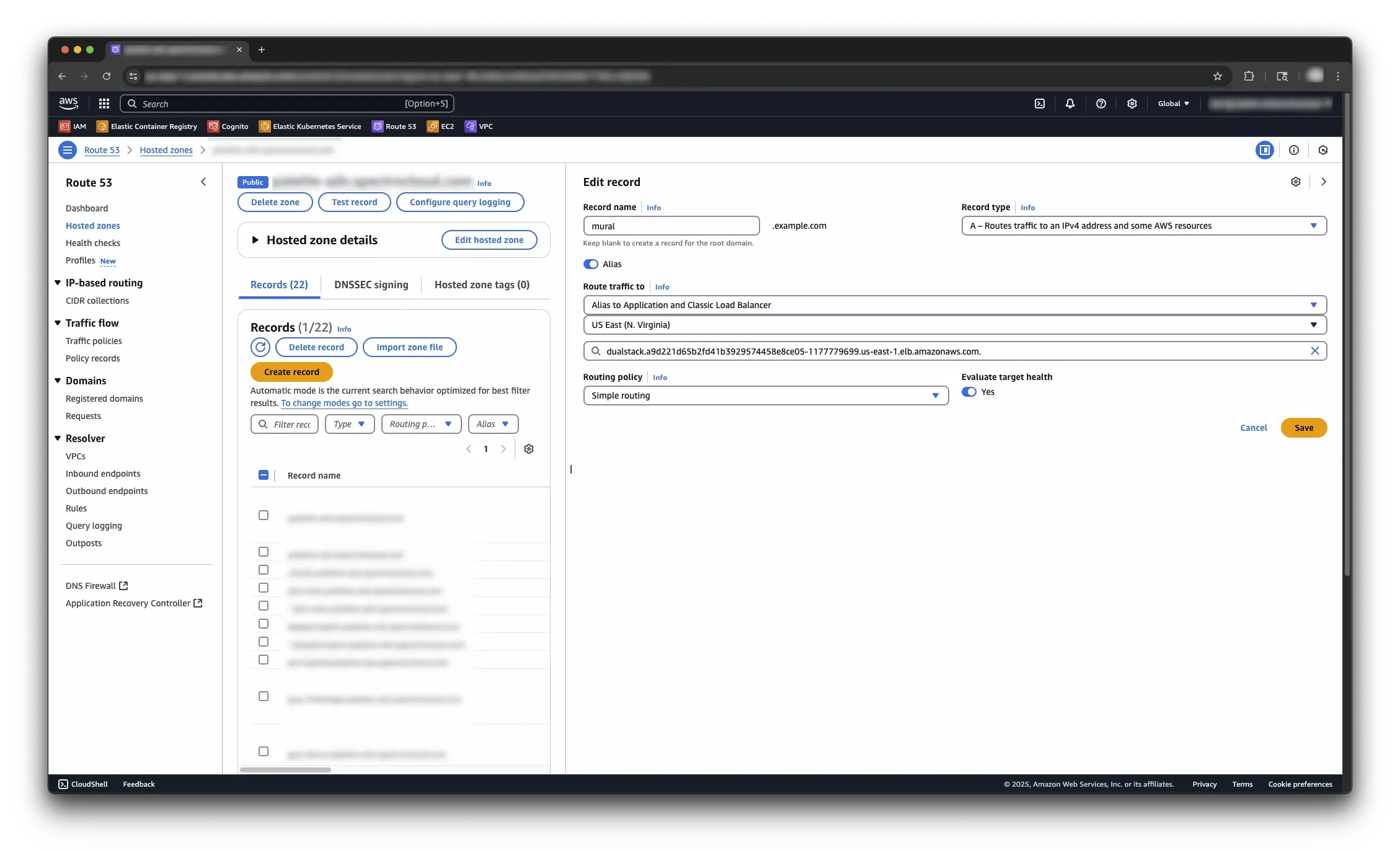 info
infoIt may take a few minutes for the DNS changes to take effect.
If you manage your hosted zone with the AWS CLI, the following example creates a CNAME record that maps your PaletteAI domain to the load balancer hostname.
paletteai-dns-record.json{
"Changes": [
{
"Action": "UPSERT",
"ResourceRecordSet": {
"Name": "paletteai.example.com.",
"Type": "CNAME",
"TTL": 300,
"ResourceRecords": [
{
"Value": "a1b2c3d4e5f6g7.elb.us-east-1.amazonaws.com"
}
]
}
}
]
}aws route53 change-resource-record-sets \
--hosted-zone-id <hosted-zone-id> \
--change-batch file://paletteai-dns-record.jsonIf your PaletteAI domain is a zone apex, such as
example.com, CNAME records are not allowed. Create an alias A record that targets the load balancer instead.
You have now deployed PaletteAI on an AWS EKS cluster. If you are using the user impersonation feature or you have set up an OIDC provider, you can now log in to PaletteAI. Alternatively, if Dex local users are enabled, refer to Local Dex Users for the default admin credentials and customization options.
If you need to make changes to PaletteAI, review the Helm Chart Configuration page. Trigger an upgrade to the PaletteAI installation by updating the values.yaml file with the changes you want and running the following command.
helm upgrade mural oci://public.ecr.aws/mural/mural --version 1.2.1 \
  --namespace mural-system --values values.yaml --wait
Validate
Take the following steps to verify that PaletteAI is deployed and configured correctly.
-
Open a browser and navigate to the domain URL you configured for PaletteAI.
-
Log in with the default username and password. If you configured Dex with an OIDC connector, log in with your identity provider.
Troubleshooting
This section covers issues commonly encountered when installing PaletteAI on a fresh EKS cluster.
Helm Install Fails with Missing CRD Errors
The install fails immediately with errors similar to the following.
Error: unable to build kubernetes objects from release manifest: resource mapping not found for name:
"mural-root-ca-issuer" namespace: "" from "": no matches for kind "ClusterIssuer" in version "cert-manager.io/v1"
ensure CRDs are installed first
This means cert-manager, or its CRDs, are missing from the hub cluster. Complete the Install cert-manager section, then retry the installation. If the failed release is stuck in a failed state, replace helm install with helm upgrade --install and keep the remaining arguments the same.
Similar errors that reference the Hub, Spoke, or spectrocloud.com resource kinds mean the mural-crds chart was not installed before the mural chart. Install mural-crds first, or use the Flux-managed workflow, which orders the two charts automatically.
Pods Stuck in Pending with Unbound PVCs
Pods such as the Zot registry or Alertmanager stay in a Pending state, and their events show pod has unbound immediate PersistentVolumeClaims or the PVC events show waiting for a volume to be created.
-
Inspect the PVCs and their events.
kubectl get persistentvolumeclaims --namespace mural-system
kubectl describe persistentvolumeclaims --namespace mural-system -
If the events show
no storage class is setor no default StorageClass exists, complete Set a Default StorageClass. The default StorageClass is applied when a PVC is created, not retroactively, so delete any PVCs that were created without a StorageClass and let the chart recreate them.kubectl delete persistentvolumeclaims <pvc-name> --namespace mural-system -
If the PVC references a StorageClass but no volume is created, the EBS CSI driver is missing or cannot authenticate. Complete Install the EBS CSI Driver.
EBS CSI Controller Pods Crash or Report Access Denied
The ebs-csi-controller pods in kube-system are in a CrashLoopBackOff state, or volume provisioning fails with UnauthorizedOperation or AccessDenied errors for EC2 actions.
-
Check the controller logs.
kubectl logs --namespace kube-system deployment/ebs-csi-controller --container ebs-plugin -
Verify that the cluster has an IAM OIDC provider. If not, complete Enable the OIDC Provider for IRSA.
-
Verify that the
ebs-csi-controller-saservice account is annotated with the IAM role and that the role has theAmazonEBSCSIDriverPolicypolicy attached.kubectl get serviceaccount ebs-csi-controller-sa --namespace kube-system --output yaml
aws iam list-attached-role-policies --role-name AmazonEKS_EBS_CSI_DriverRole
FleetConfig Controller Image Pull Errors
The fleetconfig-controller pod is in an ImagePullBackOff or ErrImagePull state.
When global.kubernetesProvider is set to EKS, the fleetconfig-controller chart appends an -eks suffix to the image tag and pulls an EKS-specific image variant that bundles the AWS authentication binaries. Inspect the pod events to confirm which image reference is failing.
kubectl describe pod --namespace mural-system --selector app.kubernetes.io/name=fleetconfig-controller
Failed to pull image "us-docker.pkg.dev/.../fleetconfig-controller:v0.3.5-eks": ... not found
If the events show a not found error for a tag ending in -eks, the suffixed tag is not published in the configured registry. The EKS image variant is also published as a separate repository with plain version tags. Set fleetconfig-controller.imageOverride to that image, using the same tag as fleetconfig-controller.image.tag in your values file. The imageOverride value bypasses the provider suffix logic entirely.
fleetconfig-controller:
  imageOverride: 'us-docker.pkg.dev/palette-images-fips/palette/spectro-ocm-bcfips/fleetconfig-controller-eks:<tag>'
Apply the change with helm upgrade or through your Flux HelmRelease, then confirm that the pod starts.
kubectl get pods --namespace mural-system --selector app.kubernetes.io/name=fleetconfig-controller
Any image referenced through imageOverride on EKS must include the AWS authentication binaries, so do not point it at the generic fleetconfig-controller image. The generic image starts successfully but cannot authenticate to EKS clusters at runtime.
PaletteAI UI Returns 404 or 502
The installation succeeded, but browsing to the PaletteAI domain returns a 404 page not found or 502 Bad Gateway error.
-
404 when browsing the load balancer hostname directly. The Canvas Ingress rule matches the host configured in
canvas.ingress.domain. Browsehttps://<your-domain>/aiusing the DNS name instead of the raw load balancer hostname. -
404 on the
/aipath. Verify thatcanvas.ingress.enabledistrue, that the Ingress path is/ai, and thatcanvas.ingress.domainmatches your DNS record exactly.kubectl get ingress --namespace mural-system
kubectl describe ingress canvas --namespace mural-system -
404 on the root path
/. The redirect from/to the UI is served by the root Ingress and a Traefik middleware. Verify thatglobal.dns.rootIngress.enabledistrueand thatglobal.dns.domainis set to your domain. If you use a different ingress controller, this redirect does not apply; browse/aidirectly. -
502 or connection errors from the load balancer. When TLS terminates at the load balancer, traffic reaches Canvas over plain HTTP on port
2999, which only exists whencanvas.enableHTTPistrue. A backend port of3000in the Ingress, orcanvas.enableHTTPleft atfalse, causes a protocol or port mismatch. Verify that the Canvas service exposes port2999and that the Ingress backend references it.kubectl get service canvas --namespace mural-system --output yamlAlso confirm the Traefik service annotations from the Ingress (Traefik) section:
service.beta.kubernetes.io/aws-load-balancer-backend-protocolmust behttp, the SSL certificate ARN must be valid, andtraefik.ports.websecure.targetPortmust bewebso that HTTPS traffic from the load balancer reaches the Traefik entrypoint that serves the Ingress routes.
Helm Install Times Out or Requires Retries
The helm install command with --wait can exceed the default five-minute Helm timeout on a fresh cluster, because images are pulled for the first time and PVCs are provisioned during the rollout. A timeout leaves the release in a failed state even though the workloads may still converge.
-
Check whether the pods are progressing before assuming the installation is broken.
helm status mural --namespace mural-system
kubectl get pods --namespace mural-system -
Retry with a longer timeout. Use
helm upgrade --installso the command succeeds whether the previous attempt left a release behind or not.helm upgrade --install mural oci://public.ecr.aws/mural/mural \
--version <version> \
--namespace mural-system \
--create-namespace \
--values values.yaml \
--wait \
--timeout 20m -
If the release keeps failing, identify the pods that do not become ready and inspect their events.
kubectl get pods --namespace mural-system --field-selector status.phase!=Running
kubectl describe pod <pod-name> --namespace mural-system
Match the failure against the other entries in this section:
Pendingpods usually indicate storage issues, and image pull errors on the fleetconfig-controller indicate a provider or registry mismatch.
With the Flux-managed workflow, retries and ordering are handled automatically. Inspect the release state with the following commands instead.
kubectl get helmrelease --namespace mural-system
kubectl describe helmrelease mural --namespace mural-system
Next Steps
Once PaletteAI is installed on your cluster, you must integrate Palette with PaletteAI using PaletteAI's Settings resource. This resource requires a Palette tenant, project, and API key in order to communicate with Palette and deploy AI/ML applications and models to the appropriate location.
Proceed to the Set Up Palette for PaletteAI guide to prepare your Palette environment.